Get Started with Vuforia Chalk
Everything you need to share remote expert guidance
Destination or Printer: select Save as PDF
More Settings: In the Options, be sure the boxes Headers and footers and Background graphics are selected.
Install Vuforia Chalk
Before you install Chalk, your organization's admin must invite you to create an account. Once you activate your account, download the Vuforia Chalk app on your device.
01. Accept Chalk invitation
To join your company's Chalk account, you need an invitation from an administrator at your company. Once an admin adds you as a new user, you'll receive an email invitation from "[email protected]." It may be in your spam folder.
Accept the invitation to create a Chalk account. Use your company email and choose a password. If your invitation expires before you’re able to accept it, contact your primary administrator: In the Chalk app, select “Settings,” then “Help,” then “Contact Company Admin.”
If you were invited to use Chalk by another user, not your organization, you only need a free Chalk account. You may receive an email inviting you to download Chalk if someone tries to add you to their contact list. Sign up for an account when you download the app.
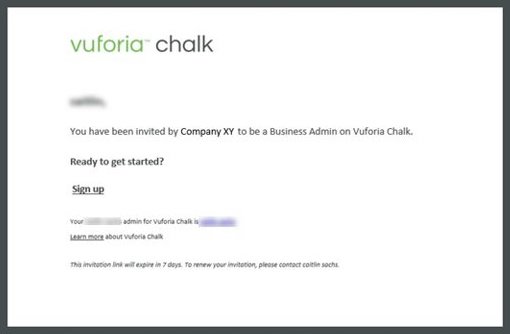
- Join your Company's Business Account Help Center
02. Install Vuforia Chalk on devices
Once your Chalk account is activated, install Vuforia Chalk on your device. You can use Chalk on a mobile device, tablet, laptop, desktop computer, or RealWear eyewear device. Check if your device is compatible with Vuforia Chalk.
If your company owns your device, your IT department may need to give you permission to install the app or do it for you.
Mobile devices and tablets
The Vuforia Chalk app is available from your device’s app store. After you download the app, sign in. Use your company email address and the password you selected when you created your Chalk account.
RealWear devices
If you’re using RealWear HMT-1 or HMT-1Z1 to use Chalk, make sure your RealWear operating system is updated to Android 8 or 10. Then download the Vuforia Chalk APK onto a computer and install the application onto the devices from the RealWear Explorer. Your organization needs premium licenses to use Vuforia Chalk on RealWear devices. Learn more in the “Vuforia Chalk for RealWear” link below.
Laptop or Desktop computer
If you’re using Chalk on a laptop or desktop computer, there’s no need to install anything. Log in to connect.vuforia.com. Vuforia Chalk is only supported on the Google Chrome web browser. If you do not have the required web browser, install it now. Your organization needs premium licenses to use Chalk for Desktop. Learn more in the “Vuforia Chalk for Desktop” link below.
- Chalk Supported Devices Help Center
- Download the Chalk mobile app Help Center
- Vuforia Chalk for RealWear Help Center
- Chalk for Desktop Help Center
Did you find this helpful?
Invite Users
Learn How to Use Vuforia Chalk
Table of Contents
Overview: Get Started with Vuforia Chalk
Use this guide as you plan, implement, and learn to use Vuforia Chalk. Follow step-by-step instructions and get resources to help introduce Chalk at your organization. Connect your employees to expert guidance when and where they need it. Plan and monitor the project to meet your business goals.
This information is useful for:
- Project Managers
- Project Stakeholders
- System Administrators
- Technical Staff
- Anyone using Vuforia Chalk to provide or request assistance
What is a Success Path?
A Success Path is an online guide to help you implement a specific PTC product at your organization. Each path provides step-by-step instructions from the early planning stages all the way through to deployment. Use a Success Path to help your organization get the most out of a product and achieve your business goals.
Did you find this helpful?
Get Familiar with Vuforia Chalk
Learn the basics about Vuforia Chalk and the software and hardware you need to use it.
Before you begin, complete these steps:
01. Learn the basics
Vuforia Chalk empowers you to get guidance from anyone, from anywhere. If you need help, start a Chalk session with an expert—someone who can give you guidance—and share a live view of your problem. You and the expert draw annotations (also known as Chalk Marks) on the screen that stick to objects in your environment, even as you move your camera. Use Chalk on mobile devices, tablets, RealWear eyewear devices, laptops, and desktop computers.
Vuforia Chalk connects someone seeking guidance with remote experts at their organization.
There are two types of participants in a Chalk session:
1. Participants who request remote assistance
- Shows their environment to another Chalk participant
- May be your internal employees or your customers, depending on your use case
- Will use Chalk to request remote guidance from experts
2. Participants who provide remote assistance
- Sees the other Chalk participant’s environment
- May be a manager, business unit leader, or subject matter expert
- Will use Chalk to provide remote guidance
Recommended Resources
- Introduction to Chalk PTC University
- Learn the Basics of Using Chalk PTC University
- How to use Vuforia Chalk Quick Reference Sheet
02. Explore features and functionality
Vuforia Chalk helps factory operations, service, and other teams to quickly access support and expertise. People seeking guidance use Chalk to share their live environment with remote experts. They draw Chalk Marks (annotations) on their screen to resolve problems together. Chalk uses real-time 3D environment mapping to help Chalk Marks stick to objects in the physical world.
Other features include:
- Low bandwidth mode: If your network coverage is poor, the user viewing someone else’s environment can activate low bandwidth mode to continue to share high-quality images with a slight delay from the user sharing their view.
- Audio-visual mode: If someone on a session doesn’t have a compatible device, activate audio-visual mode to shut off annotations.
- Session summaries: Chalk automatically captures images of “points of interest” throughout your session. You can save or share the images at the end of your session. If you do not save the images, they’re deleted permanently.
- Connect Codes: If you have access to a premium license, you can create a unique 9-digit “Connect Code” to collaborate with people who do not have a Chalk account. To start a session with someone outside your organization, send them a connect code. These contacts only need the Chalk app to join the session; they do not need an account. This feature is great for situations where the “guest” doesn’t plan to use Chalk very often. They could be a 3rd-party contractor or your end customer in a service model.
- Multi-Expert Sessions: If you have access to a premium license to Vuforia Chalk and can use Connect Codes, you may have access to Multi-Expert Sessions. This feature allows up to five people to join a Chalk session. Update the Chalk app to version 4.0 or later to access it. Your organization may disable Multi-Expert Sessions. If your sessions allow only one participant to join, but you need additional people, contact your primary administrator: In the Chalk app, select “Settings,” then “Help,” then “Contact Company Admin.”
Recommended Resources
03. Review compatible devices
Use Vuforia Chalk on mobile devices, tablets, RealWear eyewear devices, laptops, and desktop computers.
Some devices have limited functionality.
- Mobile devices and tablets allow users to scan an environment, which helps annotations stick.
- RealWear eyewear devices can also share your environment and enable you to receive expert guidance. You cannot start sessions or make Chalk Marks on RealWear eyewear devices.
- Remote experts can use desktop or laptop computers and a Google Chrome browser to view a user’s issue, draw Chalk marks, and share knowledge. You cannot share your environment from a laptop or desktop computer.
Check the list of supported devices below to make sure your device is compatible with Vuforia Chalk.
Recommended Resources
- Supported Devices for Vuforia Chalk Help Center
- Vuforia Chalk for RealWear Help Center
Define Your Use Case
Identify and prioritize your use cases. Look for opportunities where Chalk is most likely to generate value for your organization. Then, finalize and design your use cases.
Before you begin, complete these steps:
01. Identify business challenges
To get the support your project needs, you must prove how Vuforia Chalk aligns with the strategic goals of your company. Identify and outline the challenges your business is facing. Focus on challenges that fit well with Vuforia Chalk.
Consider any challenges that prevent your organization from achieving its goals. For example, when workers cannot get the right guidance to fix equipment in a timely manner, does it cause downtime? What do you need to fix this issue? Do you have the right personnel on site to help in your current state? Prioritize your list of business challenges, keeping value in mind.
Vuforia Chalk could help you achieve value by:
- Faster and more effective service and support
- Reducing travel costs for field service technicians
- Minimizing unplanned downtime
Once you identify your most important business challenges, document the activities or capabilities that will create value. How will Vuforia Chalk help your organization solve its business challenges?
02. Learn how other organizations use Vuforia Chalk
To better understand how Vuforia Chalk can address your business challenges, learn about other companies’ use cases and the impact Vuforia Chalk had on their business.
Example use cases include:
- Reduce number of service calls by 12.5-76%
- Improve first-time fix rate by 20-67%
- Reduce unplanned downtime by 20-50%
Recommended Resources
- Case Study: Howden Improved Customer Support with Augmented Remote Assistance
- Case Study: Toyota Enables Secure Communication with Vuforia's Augmented Reality Remote Expert Assistance Tools
03. Map business challenges to Vuforia Chalk
Now that you have a prioritized list of business challenges, explore the top possibilities. Answer these questions:
- Pain point: What is the business challenge you want to solve? How can you improve operational issues, gaps in knowledge transfer, or other areas related to work productivity, quality, and support?
- Feasibility: What do you want to do? Can Chalk support it? Do you have the infrastructure to support Chalk sessions?
- Solution: How will Vuforia Chalk solve your business challenge?
- Value: If the project is successful, what will this do for the business? How will it achieve business value?
- How does the project increase revenue or reduce costs?
- How does it affect the day-to-day activities of the employees who use it?
- How many hours of work can be saved or allocated to other tasks?
Answering these questions should determine which business challenges align to Vuforia Chalk.
04. Prioritize use cases
The list of possibilities may seem endless. Rank your use cases to focus your efforts and generate the most value.
Think of a situation where remote assistance could solve the problem. For example, you could empower third shift, frontline workers to connect with experts when a machine breaks down. Vuforia Chalk helps them connect with remote experts to fix the issue and resume work quickly.
Consider which use cases will create excitement and encourage your employees to use Chalk consistently. One of the biggest challenges you may face is getting your employees to use it regularly over time. We recommend prioritizing a use case that will generate interest and excitement for the long term to keep up momentum.
05. Finalize your use cases
With all the information collected, select the most achievable use cases that will provide the most value to your organization. The best way to gain momentum is to start the project in an area where you can prove value quickly. As you decide how to implement your use case, begin with something achievable that provides return on your organization’s investment and acts as a baseline for using this technology throughout the organization. If your use case supports your organization’s business challenges, you’re more likely to get leadership support.
Once you choose your use case, clearly define the desired outcome and start thinking about key metrics you’ll need to measure and prove value. Document your chosen use cases and confirm them with project leaders. Include success criteria—the specific and measurable factors your project must meet to achieve high-level goals—for each use case, and what steps you’ll take if those criteria are not met.
As you start to use Chalk and learn more about the technology, revisit your use cases and continue to improve upon them. Early success will help with your long-term strategy.
Verify Security and Compliance
If you have not done so already, make sure Vuforia Chalk meets your organization’s security policies and compliance requirements.
Before you begin, complete these steps:
01. Address security requirements
Check your organization’s policies and identify your security requirements. Your IT department will likely have specific rules governing software, mobile/eyewear devices, and data security. Early in the project, contact the people at your organization who are responsible for reviewing new technology. Address security concerns early to prevent delays later.
Vuforia Chalk is a SaaS (software as a service) solution built to safeguard users’ data and intellectual property. To learn more about what PTC does with your data, read our Privacy Policy. If your IT team has concerns about storing data in the cloud, PTC can address them. If you need specific security information or reports, email PTC or contact your sales representative.
Consider if you want users to have the option to save session summaries. If privacy is a concern, an administrator can disable the session summaries feature.
Vuforia Chalk security features:
- SOC2 compliance
- Content encryption for data in transit and at rest
- Secure authentication and single sign-on support
- Multi-layered application security management including service isolation, network and web application firewalls, user access controls, and auditing
- Environment vulnerability scanning and penetration testing
- DDoS protection for real-time monitoring and remediation for network-level attacks
- Backups and disaster recovery
- Option to use end-to-end encryption
Recommended Resources
- Email: Request security information or reports (Ptc.com)
- PTC Privacy Policy
- Chalk Security Architecture Help Center
02. Understand encryption options
Chalk offers two encryption types:
1. End-to-end Encryption (E2EE)
- This encryption type offers the highest security.
- Data lives only on the device, not on the server. Content is passed back and forth between participants’ devices, not the cloud.
- If PTC provisioned your company’s account before March 30, 2021, then your account uses End-to-end Encryption by default. You were provisioned when PTC granted your organization access to its Chalk account.
- This encryption type disables access to the Multi-Expert Sessions feature. With End-to-end Encryption, only two users are allowed in Chalk sessions.
2. Standard Encryption
- Data passes through Chalk Cloud Services before reaching other participants’ devices.
- Data lives on the server just long enough to be decrypted, re-encrypted, and sent back to one or more clients. Once data is sent out to other clients, it does not remain on the server. Data is never permanently stored on a server.
- If PTC provisioned your company’s account after March 30, 2021, then your account uses standard encryption by default. You were provisioned when PTC granted your organization access to its Chalk account.
- This encryption type enables the Multi-Expert Sessions feature.
Allow host to choose
You may "Allow Host to Choose” their own encryption type. In this case, your users must choose which encryption type they want each time they start a session. Carefully consider whether this option is right for your users: in most situations, someone using Chalk to request assistance won’t know whether end-to-end or standard encryption is appropriate for their situation. With this option, the user must choose their encryption type before they can start a Chalk session.
Encryption considerations
There are some important factors that play a role in determining what encryption type your organization needs.
- Benefits of standard encryption: If you choose standard encryption, you will have access to the Multi-Expert Sessions feature, which allows up to five people to join a Chalk session.
- Changing encryption: You can change your encryption type at any time. The change takes effect right away. To change your encryption type, visit the Chalk Admin Center and select “My Account.”
- Encryption and access: Multi-Expert Sessions are only available if your organization uses standard encryption.
- Consult with IT: Your IT department will likely have security requirements that Chalk must meet. They will help you decide which encryption type is better for your organization.
Recommended Resources
- Company Settings: Encryption Types Help Center
- Standard Encryption Help Center
- End-to-End Encryption Help Center
03. Confirm industry compliance
Consider how your organization will use Vuforia Chalk: does your industry have any compliance standards or regulations you must meet in those situations?
Compliance questions to consider:
- Are workers required to document repair activity?
- Does your organization need copies of SOC reports? If you need reports, email PTC.
- Do rules or regulations prevent workers from using eyewear or mobile devices while performing tasks?
- Are cameras allowed in the environments where you plan to use Chalk?
Plan how Vuforia Chalk will affect your organization’s compliance processes.
04. Determine device requirements
You will need some combination of mobile devices, eyewear devices, or computers to use Vuforia Chalk. Before you select which devices to use, identify any safety and security standards that devices must meet.
Safety and compliance
Imagine the employees who will use Vuforia Chalk and consider the environments where they work. Are there any restrictions on the devices they can use while performing their jobs? For example, are employees required to wear helmets or safety glasses? Do devices need to be intrinsically safe for use in explosive environments? Are workers using the devices in a clean room? Document any relevant safety and compliance requirements.
Security
The devices you use to participate in a Chalk session will temporarily store data. These devices have built-in security features, but your organization may require stricter protection. Are there data security policies that govern devices at your organization? For example, you may need to install Mobile Device Management software on the devices to allow your IT department to monitor and secure them. Document any relevant security requirements.
Assemble Your Team
Decide who will be involved in your Vuforia Chalk project and what their responsibilities are.
Before you begin, complete these steps:
01. Determine roles and responsibilities
Decide who will be involved in your Vuforia Chalk project. You’ll need help from a variety of people to pursue your use case and persuade others to use Chalk. We recommend you start with a small team before you introduce it more broadly.
Suggested roles and responsibilities:
- Executive Sponsor
- Leader at your company who is invested in the success of Vuforia Chalk
- Responsible for building excitement across the organization and realizing the value of Vuforia Chalk
- Defines the scope, timeline, use case(s), goals, key performance metrics, and measures of success
- For small pilots or teams, the deployment lead may own these responsibilities
- Deployment Lead
- Project manager of the Chalk evaluation and full rollout
- Rallies the team, communicates purpose and plan, and makes sure everyone is trained
- Monitors end user adoption
- Collects feedback
- Recommends adjustments and next steps
- Primary Administrator
- Adds and manages users and assigns roles in Chalk
- Knows how to use Chalk features and functionality
- Helps users troubleshoot issues
- Monitors performance and usage
- Evaluates and communicates results
- Contacts PTC through technical support cases and provides technical feedback
- Works with your organization’s IT team to select the appropriate encryption type (end-to-end or standard encryption) to meet your security needs
- Technical Lead
- Expert responsible for ensuring the technology is successful across the project
- Makes sure devices and products work on all networks
- Works with IT and compliance
- Determines training needs
- IT and Compliance teams
- Help implement and maintain the technology needed for Vuforia Chalk
- Ensure Chalk meets your organization’s security and compliance policies
- Advises the primary administrator about the appropriate encryption type (end-to-end or standard encryption) based on your organization’s security needs
- End Users
- Expert
- Individuals and teams who provide guidance to frontline workers or other employees in the organization
- Individuals and teams who have a stake in the success of the project
- May be a manager, business unit leader, or someone who is a subject matter expert in their work
- Will use Chalk to provide remote guidance
- User
- May be your internal employees or an external customer
- Individuals and teams who need guidance from someone else, such as an expert
- Will use Chalk to request remote guidance
- Expert
One person may fill more than one of these roles, or you may have several contributors assigned to each role. As you build your Vuforia Chalk team, engage any employees who are interested in and will use the new technology in their jobs. This will create early engagement and excitement, which will help maintain your momentum.
If your use case requires working with your customers or someone outside your organization, consider hiring external resources to cover skill gaps and speed up your program.
02. Select an evaluation team
We recommend you start with a small evaluation team before introducing Vuforia Chalk more broadly across your organization. Your evaluation team will test and evaluate Chalk in their day-to-day jobs in order to ensure Chalk functions properly in your use case environments and meets your expectations. Your evaluation team depends on the size of your company and your use case. It could be as small as two people.
Engage employees, including end users, who are interested in and excited about using the new technology in their jobs. By involving end users early and listening to their feedback, you encourage them to become advocates for the project.
03. Get support from leadership
Your Vuforia Chalk project will benefit tremendously from leadership support. Ensure leaders communicate the importance of your project to their teams in regular forums and feedback sessions. Identify and engage various people across your organization to support your project. The right leaders may vary business to business.
Leadership support also cultivates collaboration among the teams who will use Vuforia Chalk across your organization. The more your teams interact, share best practices, and work together, the more engagement and support you'll generate.
Create a Project Plan
Plan how you’ll execute your Vuforia Chalk use case. Decide where to begin, who will be involved, and when you'll start.
Before you begin, complete these steps:
01. Define initial project scope
Envision the boundaries of your project: to what extent will this new technology affect your organization? Define the scope of your Vuforia Chalk project to give those involved a shared understanding of their role, the objectives, and goals. Ensure the scope is manageable for your timeline and budget and it fulfills the success criteria for your use case. Plan your project in a phased approach. Work toward short-term goals within your long-term plan. This phased approach will generate quick wins and give you momentum.
02. Identify affected team
Now that you’ve assembled your team, consider who else will be immediately affected by your Vuforia Chalk project. Consider who will use Chalk in their jobs and how they do their work today. These employees will need training to use Vuforia Chalk. Also consider who will follow up with them to gather feedback and encourage them to continue using Chalk.
Before you share Vuforia Chalk with employees who will use it in their jobs, select a few people to test the product. These initial users do not need Vuforia Chalk experience, but they should be enthusiastic about embracing new technology and willing to dedicate time to the project. Contact those who will help you test Chalk early in the project and provide them training.
If you have not yet done so, document who has a stake in the project. Include executive sponsors, business leads, subject matter experts, or other contributors so everyone on the project is clearly identified and accountable.
03. Establish dates and deadlines
Establish a timeline that includes short-term and long-term goals to stay on track with your project. It should also include completion dates, milestones, key deliverables, and a rollout date—the date you’ll share Vuforia Chalk more broadly at your organization. You’ll create a rollout plan later.
04. Determine your training needs
Identify who needs Vuforia Chalk training and what to include in that training. Your Vuforia Chalk users will need some training to get started. We also recommend including members of your IT team in training so they can provide technical support to other users. Depending on the scale and timeline of your project, your training needs may evolve.
PTC has a variety of independent training resources that explain how to use Vuforia Chalk.
- The Help Center covers key topics about how to use Chalk, including starting Chalk sessions, scanning an environment, and drawing Chalk marks. The Help Center also has advice for troubleshooting common issues.
- The Vuforia Chalk Introduction Tutorials in the PTCU Learning Connector provides a video overview on how to get started with Chalk and use its features and functionality.
- For advice and tips from fellow users, join the Community. Anyone can explore and view posts in the Community, but you'll need to create a PTC account if you would like to post a topic or respond to others. This account is separate from your Vuforia Chalk account.
Recommended Resources
- Vuforia Chalk Help Center Help Center
- Vuforia Chalk Learning Connector Tutorials PTC University
- Vuforia Chalk Community PTC Communities
Create a Measurement Plan
Plan how you’ll measure success. To prove the results of your Vuforia Chalk project, you must measure key performance indicators: Determine your goals, define your plan, and establish your metrics and a clear baseline.
Before you begin, complete these steps:
01. Determine goals and metrics
What are the goals of your Vuforia Chalk use case and how will you determine the project is successful? Establish measurable goals and quantifiable metrics. This will help you keep your project on track, gain momentum, and prove value.
Establishing clear goals also helps you:
- Get support from leadership
- Persuade other teams to start using Vuforia Chalk
- Get budget and resources
- Expand your project in the future
Depending on your industry, there are a variety of metrics to consider for your use case. Some examples include:
- Reduce travel costs by improving first-time fix rate
- How? By enabling frontline workers with real-time AR support from your experts, resolving issues more quickly.
- Reduce unplanned downtime for you or your customers
- How? By connecting your field technicians or customers to experts who can guide them through troubleshooting and repair processes.
- Improve quality assurance and reduce recalls
- How? By connecting with suppliers in real time to ensure the correct parts are manufactured to your specifications.
- Improve service diagnosis and resolution time
- How? By connecting your customers with service technicians to help solve issues fast.
Don't forget to also document "soft" metrics such as customer satisfaction, employee confidence, and overall progress of the usage of Chalk at your organization
02. Define a measurement plan
After you identify the goals and metrics your organization will track, it’s important to document and share the measurement plan. In the measurement plan, include:
- Project goals
- Goals should be specific, measurable, attainable, time-based, and relevant to your Chalk project.
- Prioritize your goals based on their impact and the opportunity to solve your business challenges.
- Key metrics
- The specific and quantifiable measures you will track to prove you're achieving your goals.
- How you will measure key metrics
- How do you measure these metrics today? How will you continue to measure them throughout the project?
- For example, if "travel costs" is a key metric, how will you consistently measure whether travel costs change as you start using Vuforia Chalk?
- The timeline and milestones for your measurement plan
- We recommend working in a 30-day timeline. Gather metrics weekly or daily (based on your use case) and do a final comparison at the end of the 30 days.
- Who will gather and record the metrics
- There's likely someone at your organization who measures performance of day-to-day operations. For example, a manager who tracks service calls.
- When to share progress and outcomes with stakeholders
- For example, depending on your use case, you may meet weekly to check on progress with a final comparison at the end of a 30-day timeline.
- You’ll share results with the project team you outlined when you assembled your team.
- Also, consider how you may need to adjust your strategy based on your results. For example, do you need to change the expectations around using Chalk at your organization?
- Baseline metrics
- You need to know the current state of your key metrics to accurately measure the impact of Vuforia Chalk.
03. Establish baseline metrics
Before you start using Vuforia Chalk, you must document your organization's "as-is" state, known as baseline metrics. If you fail to establish baseline metrics, it will be difficult to measure whether your Vuforia Chalk project had a meaningful effect on your organization.
For example, if you're trying to improve service call rates, quantify how often calls occur and how long they take to resolve, using your current method. In this example, consider how long your service calls take on average: Does it meet your expectations? Are there any incidental costs involved, such as travel?
Establish your baseline metrics to help prove the value of your project. Create a spreadsheet or similar document to record your baseline metrics and track any updated metrics throughout the project timeline. This will help you show changes in your metrics as you go along.
Choose Devices
Vuforia Chalk works on mobile devices, tablets, RealWear eyewear devices, and computers. Decide which devices are right for your organization.
Before you begin, complete these steps:
01. Review compatible devices
Vuforia Chalk works on a variety iOS and Android mobile devices and tablets, RealWear eyewear devices, and laptop and desktop computers. Review a list of compatible devices on the Vuforia Chalk Help Center. The list is updated regularly as software updates are released.
Recommended Resources
- Supported Devices for Vuforia Chalk Help Center
- Vuforia Chalk for RealWear Help Center
02. Compare device options
The best device for your situation depends on your use case and circumstances. Consider the environment where your employees will use Chalk. Do they need to keep their hands free? Do they need to draw Chalk Marks? Will they show their environment to other participants?
Determine which devices are best suited for your use case and participant types: which devices should the participant requesting guidance use, and which devices should the participant providing guidance use? Each device has its own considerations:
- Mobile devices and tablets: AR-enabled mobile devices and tablets allow you to access Vuforia Chalk’s full potential. After you scan your environment, any Chalk Marks (annotations) you draw will stick to objects in the real world on screen. This helps the expert provide clear guidance for your situation. You likely already have access to mobile devices or tablets at your organization.
- Desktop or laptop computers: Remote experts can use Chalk for Desktop to provide guidance, directly from a desktop computer or laptop. Only one user in a Chalk session can use a desktop computer. At least one participant needs to join the session using the camera on their mobile device, tablet, or RealWear eyewear device to show their environment. All other participants can choose to join via desktop, laptop, mobile device, or tablet. Chalk for Desktop is only available for users with a premium license. Access Chalk for Desktop from a Google Chrome web browser.
- RealWear eyewear devices: RealWear eyewear devices allow you to receive guidance while keeping your hands free to complete a task safely and efficiently. Use the camera on a RealWear HMT-1 or HMT-1Z1 eyewear device to share your environment and access remote expertise. You need access to a premium license to use Chalk on RealWear eyewear devices. RealWear users cannot initiate sessions or draw Chalk Marks due to the hands-free nature of RealWear devices.
Recommended Resources
- Supported Devices for Vuforia Chalk Help Center
- Vuforia Chalk for RealWear Help Center
- Chalk for Desktop Help Center
03. Document your device management plan
You will need some combination of mobile devices, tablets, RealWear eyewear devices, or computers to use Vuforia Chalk. These devices must be inventoried, maintained, secured, and updated—similar to other hardware employees use in their jobs. This responsibility typically falls on IT. If you’re using Chalk on devices that employees already have, this step may not be necessary.
There are many questions you must answer to determine the best device management plan for your needs:
- Device inventory: Who will maintain a list of available devices? If you plan for employees to share devices, how will they track what’s available, what’s broken, and who checked out the device most recently?
- Initial setup: When a new device arrives, how will you prepare it for use?
- Ongoing software support: Who will install software updates on the devices? If the IT department is unable to oversee monthly software updates, consider allowing employees to perform updates themselves.
- Charging batteries: Where should devices be plugged in? How often will they need to be charged?
- Storage and cleaning: Where should the devices be stored when not in use? Who will be responsible for sanitizing them after each use?
- Security: Are there data security policies that govern devices at your organization? You may install Mobile Device Management software on the devices, if necessary. We recommend applying the latest software and firmware upgrades on a timely basis. Follow guidance from your IT team to secure the devices.
- App store account management: Devices must connect to their corresponding app stores to download Vuforia Chalk. To access the app store, Google Play and Apple require a user ID. Who will manage this account? Will it be managed per device or will you share the same account and credentials across the organization? We recommend that you practice good password hygiene.
Document your device management plan and share it accordingly. Most importantly, make sure the people who use the devices understand their role in maintaining them.
Recommended Resources
- RealWear HMT Support (Realwear.com)
04. Manage software updates
Vuforia Chalk releases software updates every month. We recommend installing the latest updates to each device in a timely manner.
You can configure the app to automatically update. If your organization prefers to limit the ability to update the software, determine who will be responsible and how updates will take place. You may use Mobile Device Management software to distribute updates. Remember: devices must be connected to the internet to receive updates.
Recommended Resources
- Open a case with PTC Technical Support eSupport PTC login required
- Access the Community PTC Communities
- Download the Chalk mobile app Help Center
- Vuforia Chalk for RealWear Help Center
- Chalk for Desktop Help Center
Ensure Proper Infrastructure
Make sure your IT infrastructure is equipped to support Vuforia Chalk. You’ll need internet connectivity to hold Chalk sessions. If you’re using a laptop or desktop computer, you also need a compatible web browser.
Before you begin, complete these steps:
01. Verify internet connectivity
You’ll need internet or data connectivity to use Vuforia Chalk. Consider where your team will use Chalk. Then verify they can connect to the internet in those environments. Make sure the network you use has enough bandwidth to support Chalk sessions, in addition to any other devices that may be using it. For example, a guest network may not have the necessary capacity depending on what else is connected to it.
Work with your technical lead or IT team to ensure your network allows access to the services Chalk uses. Read more about network configuration in the “Chalk Network Connectivity" resource below. If the network does not have the necessary configuration, Chalk’s audio or video may not work.
If your use case involves customers or people outside your organization using Chalk, talk with them about their network connectivity capabilities. Also ensure their devices are compatible with Chalk.
Recommended Resources
- Chalk Network Connectivity Help Center
- Chalk Network Troubleshooting PTC Communities
- Chalk Troubleshooting and FAQs Help Center
- Chalk Best Practices Help Center
- Supported Devices for Vuforia Chalk Help Center
- Twilio Network Test (Networktest.twilio.com)
02. Check device compatibility
You can use Chalk on a mobile device, tablet, laptop, desktop computer, or RealWear eyewear device. Check if your device is compatible with Vuforia Chalk.
To use Vuforia Chalk on a laptop or desktop computer, you need a Google Chrome browser. Ensure everyone who will use Chalk on a laptop or desktop computer has access to Google Chrome. Since Chalk for Desktop is software as a service (SaaS) and the user accesses it online, there’s no need to host the software on your organization’s servers or download any software locally to the computer.
If your organization owns the device, your IT department may need to give you permission to install Vuforia Chalk or Google Chrome or do it for you.
Recommended Resources
- Chalk Supported Devices Help Center
- Chalk for RealWear Help Center
- Chalk for Desktop Help Center
03. Set up single sign-on
Single sign-on is available for Vuforia Chalk, though not required. Single sign-on allows employees to use their existing company email address and password to sign in to Vuforia Chalk. If you prefer not to set up single sign-on, skip this step. You can also set it up later, though the transition time may take longer.
To set up single sign-on, you must have an identity provider that supports SAML. Learn more about setting up single sign-on in the article below.
Single sign-on helps control access to Chalk. For example, if an employee leaves your organization, when they’re removed from your organization’s directory, they’ll also lose access to Chalk. It can also be helpful when you have too many users to manage on an individual basis. Single sign-on makes it easier for the user to manage their own credentials.
If you don't set up single sign-on now, you can set it up later. Setting it up later may take longer depending on the number of users you have. You also risk interrupting someone’s work, if someone is using Chalk at the time. Communicate with all users before setting up single sign-on.
Recommended Resources
- Chalk Single Sign-on (SSO) Help Center
- Configuring SSO for Chalk eSupport PTC login required
- Vuforia Chalk SSO: How to enable SSO for Chalk using Okta Identity Provider eSupport PTC login required
Create a Rollout Plan
Plan how your organization will introduce Vuforia Chalk to the employees who will use it. A rollout plan helps you navigate change and encourage users to adopt this new technology.
Before you begin, complete these steps:
01. Define your rollout plan
Plan how to support employees as they learn how to use this new technology. You may roll out Vuforia Chalk to a large audience all at once or release it to smaller groups gradually. The specifics of your rollout plan will vary, depending on your organization’s use case. If your organization has a training department, work with them to plan how you’ll train end users.
A rollout plan outlines:
- Who, specifically, will be using Vuforia Chalk?
- What needs to be communicated to end users?
- How will you communicate with them as they get started and use Chalk?
- When and how should they receive training? Who will conduct the training?
- When should they start using Vuforia Chalk?
- In what situations should they use Chalk?
- Will employees use Chalk to communicate with other people who also work at your organization? Will they use it to communicate with people outside the organization, like customers or contractors? Or both?
- Who will be assigned a standard versus premium license?
- How often are they expected to use Chalk?
- How will they access the devices they need?
- How will they get assistance, if needed?
- How should they provide feedback about issues or potential improvements?
- Is the Multi-Expert Sessions feature disabled? Multi-Expert Sessions won’t be available if your organization requires end-to-end encryption. Inform your users that only two people can participate in a Chalk session.
Consider some of the potential challenges new users may experience and how you will address them in your rollout plan. Consider creating a job aid or document that answers common questions.
Common challenges may include:
- Does the user’s location affect their network access? What should they do if they do not have access to WiFi or a strong data connection?
- Is there a specific WiFi network that users should connect to?
- Who are the experts that users should contact when they need guidance? Do you have an organizational directory or documentation about who to contact based on your use case?
- Are they comfortable using Chalk on their device?
- If you’re using Chalk to connect with someone outside of your organization, will they need your help to learn how to use the app and its features?
- Are hosts required to choose their own encryption type? If so, how will they know whether end-to-end encryption or standard encryption is appropriate for their situation? If you’re not sure about your encryption type, contact your Primary Administrator: In the Chalk app, select “Settings,” then “Help,” then “Contact Company Admin.”
Your rollout plan will communicate many of the decisions you made through project planning. Document your rollout plan and share it accordingly.
02. Establish internal technical support
Employees at your organization will sometimes need technical support to help them use Vuforia Chalk. To support these users, PTC recommends establishing a “help desk” within your IT department. An internal help desk is a central place where people using Chalk can go for help. Oftentimes, members from your IT organization will work the help desk. The help desk can also share best practices that help your employees get started with Vuforia Chalk more efficiently.
IT personnel should complete Vuforia Chalk training so they’re prepared to answer basic questions and troubleshoot issues. Schedule time for the project team to train the IT personnel and provide them with a chance to use Chalk.
In cases when the help desk is unable to resolve the user’s issue, PTC offers technical support. Your organization’s help desk personnel or Vuforia Chalk administrator may open a case with PTC Technical Support. Once received, a member of the technical support team will assist you.
Recommended Resources
- Create your PTC Technical Support account eSupport
- Open a case with PTC Technical Support eSupport PTC login required
Build Excitement and Address Concerns
Technology like Vuforia Chalk will help your organization improve support, decrease down time, and much more. However, for those who will use it, the changes may feel intimidating or disruptive. Take proactive steps to engage your end users (everyone who uses Chalk) and ease the transition.
Before you begin, complete these steps:
01. Establish mechanism for listening to concerns
While it's important to communicate with the people in your organization, it's also imperative to listen to them. If communication is only coming from one direction, you risk overlooking valuable feedback, inventive ideas, or important concerns.
To help facilitate feedback, try one or more of the following methods:
- An open forum or team website: Provide a forum where end users can ask questions, find answers, and make comments. Project leaders can help answer common questions across the organization.
- Group email: Some people may be hesitant to post on a public forum. To engage them, consider creating a dedicated project email inbox.
- Anonymous survey: Send anonymous surveys throughout the process to gather honest feedback without the fear of repercussions.
Whichever method you choose, be sure frontline workers, managers, new trainees, project participants, and other stakeholders know how to express concerns, share ideas, and ask questions.
02. Generate support across the organization
Advocate for Vuforia Chalk across your organization. If possible, get support from leadership and ask them to help you spread the news. Consider sharing updates with executive leaders, managers, trainees, and other end users as appropriate.
Whenever you communicate about Vuforia Chalk, tell them why you are implementing it. Know how to explain:
- Why you are making the change
- How it will affect both the business and the users of the new technology
- Your end goal and timeline
Prevent wrong assumptions by communicating the value this new technology will bring to your organization.
03. Create a communication plan
Document how, when, and to whom you will communicate throughout your project. Keep end users informed to help ease concerns about big changes.
Guidelines for creating a communication plan:
- Explain what’s happening and how the overall project is going. It's especially important to be transparent about new technology because without explanation, end users may fear the new change could eliminate their jobs or create more work for them. Be sensitive to possible fears.
- Include a timeline for what to communicate, when, and to which audiences. Establish key milestones or successes in these communications to help maintain momentum and excitement.
- Communicate with key stakeholders to ensure the message is consistent.
- Involve end users’ direct managers, if possible. If end users know their managers are excited about the change, they will be too.
04. Introduce Vuforia Chalk to end users
Change can be uncomfortable, but it's inevitable for your business to stay competitive. Implementing new technology like augmented reality is no different. There are ways to smooth the transition and build excitement about the new initiative.
One way to introduce Vuforia Chalk to end users is to show them its possibilities. Help audiences understand the technology by demonstrating how to use it. See examples of Chalk use cases. Explain how this will make their jobs easier and why it should matter to them.
A way to build excitement is to give end users an opportunity to interact with Vuforia Chalk firsthand. Early in the project, recruit end users to help test it. By involving end users early and listening to their ideas, you encourage them to advocate for the project on your behalf.
To introduce Vuforia Chalk to your end users, you can use the one-page reference sheets provided. These reference sheets include:
- How to Use Vuforia Chalk: Provides instructions to help your end users get started with Chalk.
- How to Use Vuforia Chalk with Connect Codes: Provides instructions to help your end users who are joining with Connect Codes get started with Chalk.
- Best Practices in Vuforia Chalk: Provides tips on how you should position your device, set up your environment, and draw chalk marks.
- Start a Session Using Vuforia Chalk (Standard): Demonstrates how to start a session from your contact list.
- Start a Session Using Vuforia Chalk (Premium): Demonstrates how to start a session with others within your organization, users outside your organization, or multiple experts.
- Chalk for RealWear: Provides steps for starting a session, making annotations on Chalk for Desktop, and referring to those annotations when using a RealWear headset.
Create Primary Administrator Account
If you're the primary administrator for your organization, set up your Vuforia Chalk administrator account. Also, set up the account you’ll need to get help from PTC.
Before you begin, complete these steps:
01. Accept Chalk invitation
Before you can begin using Chalk at your organization, the person who will be your primary administrator needs to create a primary administrator account. Select a primary administrator when you finalize your purchase contract with PTC.
The primary administrator is responsible for:
- Inviting new users to Chalk
- Assigning another administrator
- Serving as the main point of contact for Chalk at the organization
- Consulting your organization’s IT team to select the appropriate encryption type (end-to-end or standard encryption) to meet your security needs
If you’re the primary administrator, you’ll receive an email from "[email protected]" inviting you to activate your account. To set up your account, you'll also need your organization’s order fulfillment letter, which includes your Service Contract Number.
Follow the steps in the email to create your primary administrator account: enter your company email and choose a password to log in to Chalk. Once active, you’ll get access to the Admin Center where you'll invite and manage business admins and basic users.
Haven't received your account activation email?
If you do not receive an email inviting you to activate your account, check your spam or junk folder first.
Still haven't received it? Open a case with PTC Technical Support. You'll create your PTC Technical Support account in the next step, if you have not done so already.
Activation link not working?
The link within your email invitation to activate your account expires after 7 days. If you do not activate your account in that time, open a case with PTC Technical Support. You'll create your PTC Technical Support account in the next step, if you have not done so already.
Recommended Resources
- Activate Business Account Help Center
- Help Center for the Vuforia Chalk Admin Center Help Center
- Open a case with PTC Technical Support eSupport PTC login required
02. Choose encryption type
Depending on your organization’s security requirements, you may need to change the encryption type on your account. You can see and adjust your encryption type in the Chalk Admin Center under “My Account.”
There are two types of encryption:
1. End-to-end Encryption (E2EE):
- If PTC provisioned your organization’s account prior to March 30, 2021, then your account uses End-to-end Encryption by default. You were provisioned when PTC granted your organization access to its Chalk account.
- Offers the highest level of security.
- Disables Multi-Expert Sessions—users cannot include more than 2 participants in a Chalk session.
2. Standard Encryption:
- If PTC provisioned your organization’s account after March 30, 2021, then your account uses Standard Encryption by default. You were provisioned when PTC granted your organization access to its Chalk account.
- Offers the best balance of features, user-friendliness, and security.
- Enables Multi-Expert Sessions—allowing some users to include up to 5 participants in a Chalk session. Remember, a user needs a premium license and needs to use Connect Codes to include multiple experts in a session.
Allow users to choose
You may have the option to "Allow Host to Choose” their own encryption type.
- This encryption type forces users to choose which encryption type they want every time they initiate a session.
- Carefully consider whether this option is right for your users: in most situations, someone using Chalk to request assistance won’t know whether end-to-end or standard encryption is appropriate for their situation.
- With this option, the user must choose their encryption type before they can start a Chalk session. If your organization needs this encryption type, you must educate your users about which situations and circumstances require end-to-end encryption before you enable it.
Encryption settings take effect immediately. The primary administrator can change your organization’s encryption type anytime. If you’re not sure which option is best, contact your organization’s IT or security team.
Recommended Resources
- Chalk Admin Center (Vuforiachalk.com)
- Company Settings: Encryption Types Help Center
- Standard Encryption Help Center
- End-to-End Encryption Help Center
03. Create your support account
PTC offers two ways to get help.
PTC Technical Support
Vuforia Chalk administrators who have a PTC customer account may open a case with PTC Technical Support through the eSupport website. To create your PTC customer account, you'll need your PTC Customer Number or your PTC Service Contract Number. After you open a case, a member of the technical support team will assist you.
The PTC Community
If you do not have or do not know your Service Contract Number, the PTC Community is your best resource for support. Browse information about Chalk, follow others’ topics, or post a new topic. A knowledgeable community member will respond and help.
Anyone can read the Community topics. But if you’d like to post a topic or respond to others, you must create a PTC basic account. Select the "Basic" tab on the "Create New PTC eSupport Account" page. This account is separate from your Vuforia Chalk account.
Recommended Resources
- Create your PTC Technical Support account eSupport
- Access the Community PTC Communities
- Create your PTC Basic Account eSupport
- Get Help Logging In eSupport
Invite Users
You need a user account to use Vuforia Chalk. The administrator sets up user accounts in the Admin Center or through the Vuforia Chalk app.
Before you begin, complete these steps:
01. Invite users in the Admin Center
If you’re new to Vuforia Chalk, you need a user account to get started. An administrator can add new Chalk users through the Admin Center. There are two ways to add users: individually and in bulk. Learn more about inviting users from the link below.
When the admin invites users, they enter the following details:
- Name
- Team
- Job title
- Role (primary administrator, business administrator, or basic user)
You can always adjust this information later. Once an admin adds a new user, the user will receive an activation email from "[email protected]." It may be in the spam folder. If the user doesn’t activate their account within 7 days, the invite will expire. Users will learn more about accepting this invitation in the next step.
Recommended Resources
- Chalk Admin Center (Vuforiachalk.com)
- Invite and Manage Users Help Center
02. Understand Chalk user roles
There are 3 types of roles with different permissions in Vuforia Chalk:
1. Primary administrator
- Invites new users to join Chalk and assigns roles
- Helps users troubleshoot issues
- Monitors performance and usage
- Evaluates and communicates results of usage
- Contacts PTC to open technical support cases and provide technical feedback
- Works with your organization’s IT team to select the appropriate encryption type to meet your security needs
- Serves as the singular point of contact for your organization’s IT team
2. Business administrator
- Has the same privileges as a primary administrator to assign user permissions, add users to Chalk, and help troubleshoot issues
- Does not serve as the main point of contact to help users troubleshoot issues
3. Basic user
- Starts sessions with contacts or join hosted sessions
- Uses Chalk features and functionality including drawing Chalk Marks (annotations), viewing and saving session summaries, using low bandwidth mode, etc.
Any role type (primary administrator, business administrator, or basic user) can be assigned a premium license. A premium license allows users to generate Connect Codes and access Chalk for Desktop, Chalk for Hands-Free Devices, and Multi-Expert Sessions. Your organization may have purchased a limited quantity of premium licenses. An administrator can assign those premium licenses to users who need them.
Users with premium licenses can access:
- Company directory
- Annotation colors
- Low-bandwidth mode
- Session summaries
- Mobile devices
- Connect Codes
- Eyewear devices
- Chalk for Desktop
- Multi-Expert Sessions
Users with standard licenses can access:
- Company directory
- Annotation colors
- Low-bandwidth mode
- Session summaries
- Mobile devices
| Standard License | Premium License | |
|
Company directory |
✔ | ✔ |
| Annotation colors | ✔ | ✔ |
| Low-bandwith mode | ✔ | ✔ |
| Session summaries | ✔ | ✔ |
| Mobile devices | ✔ | ✔ |
| Connect Codes | ✔ | ✔ |
| Eyewear devices | ✘ | ✔ |
| Chalk for Desktop | ✔ | ✔ |
| Multi-Expert Sessions | ✘ | ✔ |
If you have a premium license, you can also start a Chalk session with someone by sending them a unique Connect Code. They will need to download the Chalk app and enter the code to join your session. They do not need to create an account to join your session. You’ll learn how to use Connect Codes in a later step.
Recommended Resources
- Chalk User Roles Help Center
Install Vuforia Chalk
Before you install Chalk, your organization's admin must invite you to create an account. Once you activate your account, download the Vuforia Chalk app on your device.
Before you begin, complete these steps:
01. Accept Chalk invitation
To join your company's Chalk account, you need an invitation from an administrator at your company. Once an admin adds you as a new user, you'll receive an email invitation from "[email protected]." It may be in your spam folder.
Accept the invitation to create a Chalk account. Use your company email and choose a password. If your invitation expires before you’re able to accept it, contact your primary administrator: In the Chalk app, select “Settings,” then “Help,” then “Contact Company Admin.”
If you were invited to use Chalk by another user, not your organization, you only need a free Chalk account. You may receive an email inviting you to download Chalk if someone tries to add you to their contact list. Sign up for an account when you download the app.
Recommended Resources
- Join your Company's Business Account Help Center
02. Install Vuforia Chalk on devices
Once your Chalk account is activated, install Vuforia Chalk on your device. You can use Chalk on a mobile device, tablet, laptop, desktop computer, or RealWear eyewear device. Check if your device is compatible with Vuforia Chalk.
If your company owns your device, your IT department may need to give you permission to install the app or do it for you.
Mobile devices and tablets
The Vuforia Chalk app is available from your device’s app store. After you download the app, sign in. Use your company email address and the password you selected when you created your Chalk account.
RealWear devices
If you’re using RealWear HMT-1 or HMT-1Z1 to use Chalk, make sure your RealWear operating system is updated to Android 8 or 10. Then download the Vuforia Chalk APK onto a computer and install the application onto the devices from the RealWear Explorer. Your organization needs premium licenses to use Vuforia Chalk on RealWear devices. Learn more in the “Vuforia Chalk for RealWear” link below.
Laptop or Desktop computer
If you’re using Chalk on a laptop or desktop computer, there’s no need to install anything. Log in to connect.vuforia.com. Vuforia Chalk is only supported on the Google Chrome web browser. If you do not have the required web browser, install it now. Your organization needs premium licenses to use Chalk for Desktop. Learn more in the “Vuforia Chalk for Desktop” link below.
Recommended Resources
- Chalk Supported Devices Help Center
- Download the Chalk mobile app Help Center
- Vuforia Chalk for RealWear Help Center
- Chalk for Desktop Help Center
Learn How to Use Vuforia Chalk
Explore Chalk’s features and functionality and understand when to use them.
Before you begin, complete these steps:
01. Learn Chalk’s features and functionality
Everyone who will have access to Chalk needs to learn how to use it. Understanding key features and functionality will help new users get comfortable with the technology. It may also inspire ideas for when and where to use Chalk.
Everyone should understand how to:
Access contacts
- The contact list in the app shows everyone you’ve added as a contact for Vuforia Chalk. You can add other Chalk users from your organization by selecting “add contact,” then “from company directory.”
- Each individual user’s contact list is saved locally on their device.
Start a session
- Select someone from the "My Contacts" screen to start a session with them.
- To start a session with a participant who is not registered to use Chalk, send a Connect Code. You must have a premium license to send Connect Codes to your contacts. These contacts need the Chalk app to join a session using a Connect Code, though they do not need a Chalk account.
- If you’re using Chalk for Desktop, you will not have access to a contact list. To start a session, you must create or enter a host code.
- If you’re using a RealWear device, you cannot start a session; you can only join a session someone else started. You must have a premium license to use Chalk for RealWear. Learn more at the “Use Chalk for RealWear” link below.
Help Chalk understand your environment
- At the start of your session, you must scan the environment where you need help. Follow the on-screen prompts to ensure you properly scan your environment.
- If you scan your environment, Chalk Marks (annotations) will “stick” better. This helps your expert provide clearer guidance.
- Stationary objects are best to focus on.
- Chalk Marks are easier to see in well-lit areas. Use your device’s flashlight function to improve lighting.
- Objects with distinct features, corners, or colors are better than plain or reflective surfaces.
- Once you share your view, you will see yellow dots appear on your screen. Chalk is mapping your environment.
Draw Chalk Marks
- Chalk Marks are the annotations you make on the screen that “stick” to things in your environment.
- Participants requesting remote assistance and experts providing assistance can draw Chalk Marks on the screen. If you’re using a RealWear device, you cannot draw Chalk Marks.
- Select different colors for those providing guidance and those seeking it to differentiate information. If you decide to change colors during a call, all your previous Chalk Marks will also change color.
- Use the “Undo All” button to clear all Chalk Marks from the screen.
Save session summaries
- Chalk automatically captures images of points of interest, like Chalk Marks, throughout your session.
- On a mobile device, you can save and share these images at the end of your session. If you don’t save them, the session summaries will be deleted when the session is closed.
- Your organization may disable this feature for security reasons.
- Session summaries are not available for Chalk for Desktop or guests with a Connect Code.
Use low bandwidth mode
- Low bandwidth mode is useful if:
- your network is slow
- you don’t have access to WiFi
- you’re using an unreliable cellular network
- Low bandwidth mode allows you to view high-quality images but with a slight delay. The user viewing someone else’s environment can activate low bandwidth mode from the main screen.
Use audio-video only mode
- This option shuts off annotations.
- It can be helpful if the user does not have an AR or Chalk compatible device.
Users who have a premium license should understand how to:
Send Connect Codes (premium users only)
- To start a session with a participant who is not registered to use Chalk, send a Connect Code: a unique 9-digit code that allows anyone to join your session.
- The participant receiving the Connect Code must download the Chalk app to join a session. They do not need a Chalk account.
- See the “Start a Session Using Connect Codes” resource below for instructions.
Use Multi-Expert Sessions (premium users only)
- Up to 5 people can participate in a Chalk session.
- To start a session with more than 2 participants, you’ll use Connect Codes. See the “Start a Session Using Connect Codes” resource below for instructions.
- You need software version 4.0 or later to use this feature.
- Your organization may disable Multi-Expert Sessions. If you don’t see the option to invite more than one participant in the Chalk app, contact your primary administrator: In the Chalk app, select “Settings,” then “Help,” then “Contact Company Admin.”
Use Chalk for Desktop (premium users only)
- Chalk for Desktop is a quick and easy way to transfer expertise from a remote location to those in the field by providing remote assistance from your browser.
- Once connected, you can view the other user's environment and draw annotations using your mouse, all from your desktop computer or laptop.
- Chalk for Desktop should primarily be used to provide guidance since it does not have the AR capabilities to scan or share the environment it's in.
Take some time to test each of these features and initiate sessions with fellow users. The more you use the app, the more comfortable you'll be. Read more about how to use Chalk in the resources below. If you need help, contact your Chalk administrator: In the Chalk app, select “Settings,” then “Help,” then “Contact Company Admin.”
To help you get started with Vuforia Chalk, you can use these one-page reference sheets provided. These reference sheets include:
- How to Use Vuforia Chalk: Provides instructions to help you get started with Chalk.
- How to Use Vuforia Chalk with Connect Codes: Provides instructions to help you get started with Chalk when you're joining with a Connect Code.
- Best Practices in Vuforia Chalk: Provides tips on how you should position your device, set up your environment, and draw chalk marks.
- Start a Session Using Vuforia Chalk (Standard): Demonstrates how to start a session from your contact list.
- Start a Session Using Vuforia Chalk (Premium): Demonstrates how to start a session with others within your organization, users outside your organization, or multiple experts.
- Chalk for RealWear: Provides steps for starting a session, making annotations on Chalk for Desktop, and referring to those annotations when using a RealWear headset.
Recommended Resources
- How Vuforia Chalk Works Help Center
- How to use Vuforia Chalk Quick Reference Sheet
- Start or Join a Chalk Session Help Center
- Start or Join Chalk Sessions Using Connect Codes Help Center
- Standard User - Start a session using Vuforia Chalk Quick Reference Sheet
- Premium User - Start a session using Vuforia Chalk Quick Reference Sheet
- Multi-Expert Sessions Help Center
- Add and Manage Contacts in Chalk Help Center
- Use Chalk for RealWear Help Center
- Chalk for RealWear Quick Reference Sheet
- Help Chalk Learn Your Environment Help Center
- Chalk Best Practices Help Center
- Best Practices in Vuforia Chalk Quick Reference Sheet
- Chalk Mark Best Practices Help Center
- Open a case with PTC Technical Support eSupport PTC login required
- Access the Community PTC Communities
- Vuforia Chalk Learning Connector Tutorials PTC University
Test Vuforia Chalk
Verify your team can successfully use Vuforia Chalk in their day-to-day jobs. Make sure it works correctly and your team is comfortable using it.
Before you begin, complete these steps:
01. Test Vuforia Chalk
Now that your team knows how to use Chalk, verify they can use it under the circumstances and environments included in your use case. Test Chalk with a small team before you invite more users across your organization.
We recommend running multiple tests:
- Hold a session between your chosen devices
- Hold a session in each of your use case environments
- Try different features such as Chalk Marks, low bandwidth mode, and sending a connect code
Check items such as:
- Network connectivity
- Do you have a network connection via WiFi or cellular data?
- Can your network support Chalk video and audio?
- Learn how to troubleshoot network needs.
- Environment
- Is it too loud for Chalk sessions?
- Are you able to scan your environment? It’s harder for Chalk to scan dark or poorly lit environments.
- Are there shiny objects or reflective surfaces in your environment? It’s harder for Chalk to scan these items.
- Do annotations stick to objects in your environment?
- Devices
- Are your devices compatible with Chalk?
- Do they function in your use case environment?
- Learn more about devices.
- Chalk features
- Do they function as expected?
- Do you need session summaries?
Recommended Resources
- Chalk Network Connectivity Help Center
- Chalk Network Troubleshooting PTC Communities
- Help Chalk Learn Your Environment Help Center
- Chalk Best Practices Help Center
- Supported Devices for Vuforia Chalk Help Center
02. Gather feedback from test team
Gather feedback from the users who tested Chalk.
Ask questions such as:
- In what ways does Chalk meet or fail to meet your needs?
- How did Chalk function? Did it meet or fail to meet your expectations?
- Would you use Chalk again?
- Are you comfortable using Chalk or would you like additional training?
This feedback will help you address concerns, troubleshoot issues, and communicate about Chalk as you introduce it to more users across the organization.
Create Chalk Process
Now that you’re using Chalk to provide remote guidance to employees, how will your organization’s processes need to change? Determine how Chalk fits into your existing processes. Then plan and document the new process you’ll follow to include Chalk.
Before you begin, complete these steps:
01. Document when to use Chalk
Create clear expectations for your end users about when and where they should use Chalk, depending on your organization’s use case. New technology can be disruptive and end users may find it intimidating. If your end users understand specific situations where Vuforia Chalk can help them and how it fits into their work, they’ll be more confident using it.
Earlier in the project, you documented the processes, systems, and tools your organization uses to provide assistance. Now, you’ll outline how Chalk fits into your current processes and how those processes might change. Set expectations for how often and in what circumstances end users should use Chalk, according to your use case.
Ask questions like:
- How do existing processes need to change now that you’re using Chalk? For example, what new steps are involved when a service ticket is opened?
- Consider any software, applications, or systems you're using to provide guidance today. How will Chalk fit into your suite of tools? Is it separate from these tools or integrated with them?
- In what situations should workers use Chalk instead of other communication options? Are there other options or tools they may use first to resolve their issue before using Chalk?
- How often should employees use Chalk? In what situations should Chalk always be used? When is it optional?
- Who initiates the Chalk session—the person requesting guidance or the expert providing guidance?
- How do users know who to contact when they need help? How will they know whether those experts are available? Should the process change if multiple experts are participating in the session?
- If your use case involves your customers, consider how they will access Chalk. Do they have user accounts, or will you send them Connect Codes to start sessions? How do they know who to contact when seeking remote assistance? Does this change any of your answers to the questions above?
Answering these questions will set you up for success and Chalk’s continued use at your organization.
02. Document your process
Plan the process of your Chalk sessions: who starts the sessions, how do the participants end the session, how should they manage session summaries, and should they follow up afterward? Think about the requirements your organization has for managing similar communications or processes today. Then consider those requirements as you create a new process. Also consider how Chalk might change or improve those requirements. Document this process to establish standards for everyone using this new technology at your organization.
Your process should include:
- Order of operations
- Who initiates the Chalk session?
- Do you need to use a connect code? How will they receive a connect code, if needed?
- How is the network connection? Do you have a strong or weak WiFi or cellular data signal? Is low bandwidth or audio-visual mode required?
- Are there special environmental concerns or issues scanning the environment?
- How does the session end? Does your organization save session summaries? Is follow up needed?
- Roles and responsibilities
- Who are your administrators? They provide users with access to Chalk and assign the privileges they need in their role, among other responsibilities. They may be the primary administrator or a business administrators.
- Who are your users? These people are in the environment where Chalk is used, requesting guidance using Chalk. They are responsible for scanning their environment and communicating how effective Chalk is based on their experiences.
- Who are your experts? These people are extremely knowledgeable about the issue or process the user is trying to resolve. They provide guidance to the user.
- Company requirements
- Will users have access to Multi-Expert Sessions? This feature allows up to 5 people to participate in a Chalk session. However, your organization may disable this feature.
- Is your organization saving session summaries or not? If saving session summaries, how are they saved or documented?
- Do you require documentation about the session or any necessary follow up?
Establishing a process helps communicate how Chalk fits in with your organization’s current processes and tools. It also ensures your organization's use of Chalk is consistent as your user base grows.
Check on Progress
Regularly meet with your project team to review your progress with Vuforia Chalk. Discuss project status, action items, and any issues or obstacles.
Before you begin, complete these steps:
01. Connect with project team to review progress
Conduct regular check-in meetings with your project team to assess progress and monitor milestones according to your project plan and communication plan.
Review topics such as:
- Overall status of the project, including timeline, budget, scope, and resources
- Recently completed tasks and action items
- Current action items
- Open action items
- New developments and insights
- Issues, risks, or obstacles
- Product usage
Gather updates from the deployment lead, technical lead, administrators, and other team members as they become involved in the project. Consider creating documentation (Word document, one-slide presentation, etc.) to regularly address the same topics mentioned above.
Consider meeting more frequently when your Vuforia Chalk project begins. As it progresses, you could meet weekly or every other week depending on what works best for your project.
Share progress updates with other stakeholders who should be included as the project progresses. If you have a PTC Customer Success Manager, they can help you track your progress.
Roll Out to End Users
Once you’ve tested Chalk, roll it out to your end users. End users include anyone in your organization who will use Vuforia Chalk. Execute the rollout plan you created earlier in the project.
Before you begin, complete these steps:
01. Train end users
Ensure everyone who will use Vuforia Chalk has the knowledge they need to get started. Follow the training plan you created in your project plan. If your organization has a training department, collaborate with them.
Depending on your use case, your end users may include your customers. Determine how you’ll train all your end users.
To participate in training, end users will need:
- Access to the Vuforia Chalk app.
- Your organization’s chosen devices (mobile devices, tablets, eyewear devices, and/or computers).
- A username and password to log in to Vuforia Chalk, if they're not using single sign-on. Your admin will need to invite them to Chalk if they have not done so already.
Training may include a short video, a presentation, or a one-page reference sheet. We provide one-page reference sheets and tutorials in the recommended resources. End users may not need in-person training to get started. Practice sessions may also help them get comfortable with Vuforia Chalk.
As you conduct training, monitor whether your approach is effective. For example, you may discover end users need more time to get used to scanning an environment or more guidance on how to use Chalk on their given device.
Communicate key points about the project:
- When and where to use Chalk
- How often they should use Chalk
- How to use Chalk’s key features
- How to contact support if they have an issue with Vuforia Chalk or a device
Ideally, employees have been notified in advance that the organization is introducing Vuforia Chalk. They’ll be more likely to embrace the change if they know it’s coming. Training is another opportunity to build excitement for Vuforia Chalk, providing your employees with an opportunity to try the technology themselves.
Recommended Resources
- How Vuforia Chalk Works Help Center
- How to use Vuforia Chalk Quick Reference Sheet
- Best Practices in Vuforia Chalk Quick Reference Sheet
- Standard User - Start a session using Vuforia Chalk Quick Reference Sheet
- Premium User - Start a session using Vuforia Chalk Quick Reference Sheet
- Vuforia Chalk Learning Connector Tutorials PTC University
02. Train your organization's help desk
To reduce downtime and achieve your project goals, it’s important to provide technical support to everyone using Vuforia Chalk within your organization. PTC recommends establishing a “help desk” within your IT department. Help desk personnel should complete Vuforia Chalk training so they’re prepared to answer basic questions, troubleshoot problems, and manage device issues.
In cases when your help desk is unable to resolve the issue, PTC offers technical support. Your organization’s Vuforia Chalk administrator may open a case with PTC Technical Support. Once PTC is notified of the issue and the severity of the issue is assessed, a member of the technical support team will assist them.
Recommended Resources
- Create your eSupport account eSupport
- Open a case with PTC Technical Support eSupport PTC login required
- Vuforia Chalk Learning Connector Tutorials PTC University
Manage Devices
Implement your device management plan if you have not done so yet. Then, keep your devices up to date with the latest versions of Vuforia Chalk. Install updates to mobile, tablet, and eyewear devices. If you’re using Chalk on a laptop or desktop computer, Vuforia Chalk will update automatically.
Before you begin, complete these steps:
01. Update Vuforia Chalk on devices
To ensure your mobile, tablet, and eyewear devices remain secure and stable, update them regularly. Update the device operating system and the Vuforia Chalk app. PTC releases a new version of the Vuforia Chalk app every month. We post announcements regarding app updates and compatible operating systems in the Community.
Depending on which devices you use and your device settings, you may need to take extra steps to install updates. If you're not permitted to install software updates, contact your company's IT department or administrator. They will have a process for updating devices on employees' behalf.
Mobile devices and tablets
If you set up automatic updates for Chalk on your device, then the app will update automatically when PTC releases a new version. Check your auto-update setting in your app store settings.
If you do not set up automatic updates, then you’ll need to install app updates through your device’s app store.
Devices must be connected to the internet to update. You’ll need to update each device individually. You may need to sign in to the app again after the update is installed.
RealWear eyewear devices
To update Vuforia Chalk on RealWear devices, follow these steps:
- Log in to PTC eSupport. You'll need a PTC support account.
- Download the latest Vuforia Chalk APK.
- Connect the RealWear device to the computer.
- Drag and drop the Chalk APK into the RealWear Explorer to add the updated software to your RealWear device.
Devices must be connected to the internet to update.
You’ll need to update each device individually unless you’re using RealWear Foresight, which allows you to update multiple devices at once.
You may need to sign in to the app after the update is installed.
Laptop or desktop computer
Vuforia Chalk for Desktop will update automatically since you don’t download the software locally. There’s no need to update, download, or install anything.
Recommended Resources
- Vuforia Chalk Community PTC Communities
- Install Vuforia Chalk for RealWear Help Center
- Log in to eSupport eSupport PTC login required
- Open a case with PTC Technical Support eSupport PTC login required
- RealWear HMT Support (Realwear.com)
- RealWear Foresight (Realwear.com)
Measure Business Impact
Revisit the goals and metrics you established for your Vuforia Chalk project. Then, gather the data you need to measure success.
Before you begin, complete these steps:
01. Evaluate metrics
After your Vuforia Chalk use case is implemented, revisit the goals and metrics your organization set in your measurement plan. Review your baseline metrics, then gather current data. If you don’t have access to the information you need, contact someone who does, like the manager who tracks service calls.
Evaluate your metrics on an ongoing basis, according to your measurement plan.
Assess value
Compare the baseline metrics to your current data to determine how much value Vuforia Chalk has provided so far. If you’re not achieving value, there are two potential reasons. The set of metrics you chose may not be accurate for the use case. Or there may be another factor affecting the current outcome, such as users not consistently using Chalk. Investigate what the issue might be, reassess, and make adjustments.
At this point, confirm your goals have not changed from your initial measurement plan. Consider if they’re still relevant and adjust accordingly. If you do adjust your goals, give your stakeholders a clear reason why.
02. Share results with stakeholders
Share the results and any adjustments to your goals with the project executive sponsor, organizational leaders, deployment lead, users, and other stakeholders. Outline the financial impact and any improvements the project has created. It’s important to share these results so all stakeholders are informed about the value of your project. Reviewing these results can also help you reassess and determine next steps.
Revisit Project Plan and Next Steps
Evaluate your project. Then, return to your Vuforia Chalk project plan and prioritize your next steps based on the value that Vuforia Chalk contributes to your long-term goals.
Before you begin, complete these steps:
01. Complete project retrospective
After your end users use Vuforia Chalk regularly, evaluate how the project went. A project retrospective is your opportunity to reflect on the project. Gather feedback from the project team, end users, and anyone else involved with the technology.
Explore questions like:
- Did you achieve the outcome you identified for your use case? For example, if your use case is to decrease unplanned down time for new hires, has Vuforia Chalk helped your organization fix issues more quickly?
- What went well throughout the project?
- What was challenging?
- What did you learn?
- How could you have done things differently?
- What are the benefits of using Chalk compared to previous methods?
- How can you improve for the next project?
- Were there any skillsets missing from the project team?
- Was the timeline appropriate?
The project retrospective helps you identify opportunities to improve processes, reallocate resources, or change your approach. It also helps you communicate positive outcomes as you encourage others to use Vuforia Chalk.
02. Revisit project plan
As you measure the success of your Vuforia Chalk project, revisit your project plan. Determine your next steps based on the value your project delivered. Plan any adjustments you need to achieve or sustain value for the organization. Consider how you will grow the use of Vuforia Chalk in your organization to achieve the most value. Also consider new features and functionality Chalk may have at this time.
The project plan’s long-term goals should reflect what’s feasible and needed to grow your Vuforia Chalk project. For example, if you plan to start using Vuforia Chalk with new users, make sure everyone has the devices and training they need to use the technology.
Revisit your long-term strategy and project goals. Consider if you need to adjust your priorities to meet your goals—discuss any problems and new insights. Ensure your next steps are clear to everyone involved or invested in the project to keep it moving forward.
We also recommend taking steps to encourage employees to adopt Vuforia Chalk. Can they teach others how to use the technology? Empower users to teach one another to help integrate the technology in your organization.