

Selection
To speed modeling in Pro/ENGINEER Wildfire, we dramatically simplified Selection functionality, making it more consistent with many other familiar software applications.
| Simple Selection Find out how the fundamentals of Selection have changed—totally for the better. Pro/ENGINEER Wildfire now provides dynamic graphical feedback along with commonly used mouse manipulations. |
|||
|


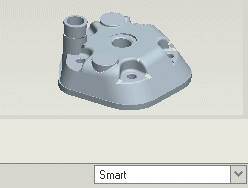
| The Filter A handy little power tool, the filter is located at the bottom right of your screen, and controls how and when to make selections. Chance are, you'll prefer to leave it set at "Smart", but you can also use it to filter out entities that you don't want to select. |
|||
|
| The Search Tool A new, faster workflow, allowing the selection of an object and then the decision for the action, is more commonly available throughout all of Pro/ENGINEER Wildfire. It is used for everything from creating features to component actions in assembly. |
||
|
