Get Started with Windchill Navigate
Everything you need to get started with Windchill Navigate
Destination or Printer: select Save as PDF
More Settings: In the Options, be sure the boxes Headers and footers and Background graphics are selected.
Tailor the App
Once installed, tailoring of views can begin. Use any documentation that has been put together so far to start creating training materials for end users.
01. Tailor Views
Tailor views for out-of-the-box (OOTB) tasks once Windchill Navigate is installed. To tailor means to configure or modify views in the solution so the right users see the right data. Anyone with administrator permissions can tailor views, most likely the system admin, Windchill admin, and developers. Instructions on how to tailor views are available in the article, Tailor Windchill Navigate Tasks.
Refer to your technical design document and documented user groups to determine what to tailor. Tailor the views needed to properly test the solution. For example, if using the “View Design Files” task, select which formats and design relationships users should see.
Since there are more tailoring options available than you may need to modify, focus on the needs outlined in your use case. Update documentation as you go, including any changes to user groups.
If tailoring OOTB apps does not offer enough customization to satisfy your use case, consider developing a custom app instead. PTC does not recommend customizing OOTB apps if it requires development.
- Tailor Windchill Navigate Tasks Help Center
02. Create materials for end user training
Create training materials for end users as you tailor or build the solution. Compile documentation to help. The person or group planning organizational change management should lead this.
Refer to your organizational change management plan to determine what you need to create and for whom.
Materials for end user training should address:
- How to access and use the app
- How to get support
- How to report bugs and suggest enhancements
- Where to access documentation
- How their job or role may be affected
Anticipate potential changes to the app as testing occurs. Make updates to training materials continuously to ensure they are complete at the time of release.
Did you find this helpful?
Configure Authentication and User Groups
Validate Connections
Table of Contents
Overview: Get Started with Windchill Navigate
Use this guide to plan, design, setup, and deploy Windchill Navigate Out-of-the-box tasks for your organization. Provided are step-by-step instructions, training, documentation, and services to assist.
There are multiple sections within this path, please click the link below that best describes your current relationship with Windchill Navigate.
I am considering purchasing Windchill Navigate
I am setting up Windchill Navigate
I am ready for implementation of Windchill Navigate
What is a Success Path?
A Success Path is an online guide to help you implement a specific PTC product at your organization. Each path provides step-by-step instructions from the early planning stages all the way through to deployment. Use a Success Path to help your organization get the most out of a product and achieve your business goals.
Did you find this helpful?
Get Familiar with Windchill Navigate
Windchill Navigate enables stakeholders throughout an organization to easily access rich data stored within the organization's enterprise system, without the need for extra training. With out-of-the-box (OOTB) role-based tasks that provide contextualized information as well as the ability to easily tailor tasks to meet organizational needs, Windchill Navigate helps users spend less time searching for data and more time collaborating.
Before you begin, complete these steps:
01. Learn the basics
Windchill Navigate gives Extended Users, who are individuals that do not typically access PLM software, quick and easy access to Product Lifecycle Management (PLM) data such as drawings, documents, and designs, as well as change requests by simplifying and streamlining access to data. Users in manufacturing, procurement, service, sales and marketing, and quality engineering can view real-time, accurate PLM content via a simple, tailored interface.
Key functionalities of Windchill Navigate tasks include:
- Viewing and downloading PLM content including drawings, design files, part structures, and documents.
- Interacting with part models in 3D with cross selection capabilities
- Reviewing, approving, commenting, and providing feedback on Change Management Tasks.
- Report a problem
Flexible deployment options include on-premises or PTC SaaS. All tasks are based within a web browser resulting in easy and seamless user access across a variety of hardware devices.
Windchill Navigate 9.6 and latest versions include technical architectural alignment and guardrails for custom apps complaint with Windchill+.
02. Out-of-the-box tasks
Windchill Navigate offers a set of out-of-the-box (OOTB) tasks that can be immediately utilized to improve data availability as well as the option to build a custom task for a specific use case.
There are two categories of OOTB tasks:
View tasks
- Tasks that allow users to view up-to-date product information (like parts lists or product drawings), but do not allow editing.
Contribute tasks
- Tasks that allow users to add or change accessible data
- The role of the user is tied to what tasks are accessible. All data access is granted at the Windchill level, not the Windchill Navigate level.
Each OOTB task is based on a function that requires a user to access PLM content. An administrator tailors the task for user roles without the need for development.
Review the resources below to learn more about Windchill Navigate.
- Read technical details on Windchill Navigate’s core features and functionality on the Help Center
- Use the Release Advisor to compare compatible versions of Windchill Navigate with other PTC products
- Utilize the PTC Product Calendar for support timelines, product versions, and compatibility matrices
Recommended Resources
- Windchill Navigate Help Center Help Center
- Windchill Navigate Product Page
- PTC University Learning Connector: Windchill Navigate PTC University
- Release Advisor eSupport PTC login required
- PTC Product Calendar eSupport PTC login required
- Windchill Navigate Real-Time Data Access ebook PTC login required
Out of the Box Business Solutions
There are many pain points that Windchill Navigate out-of-the-box (OOTB) Tasks can solve with little to no training. Continue below to view the capabilities and potential use cases of the OOTB tasks
Before you begin, complete these steps:
01. OOTB Task Capabilities
|
Windchill Navigate OOTB Tasks |
Functionalities |
|
|
|
View Design Files |
|
|
View Drawing |
|
|
View and Measure in 3D |
|
|
View Part Properties |
|
|
View Part List |
|
|
View Part Structure |
|
|
View Document |
|
|
View Document Structure |
|
|
View Work instruction |
|
|
Download Drawing Bundle |
|
|
|
|
My Tasks (Change Management) |
|
|
Report a Problem |
|
02. Understand current business processes
To more fully understand how the OOTB Windchill Navigate tasks can benefit your organization, identify how potential users currently access product data, drawings, and documents. Connect with people in roles listed below to identify trends and pain points to determine use cases.
- Manufacturing: factory supervisor, factory worker, plant manager, production quality manager
- Procurement: supply chain manager, partner manager, community manager, purchasing agent
- Service: service technician, warranty claim manager
- Sales and marketing: sales leader, marketing manager
- Engineering: safety engineer, release manager, test engineer, requirements manager, system architect, quality manager
03. Understand Windchill pain points and needs
In addition to understanding current work processes, identify challenges workers face when using Windchill that Windchill Navigate OOTB tasks could solve. For some users, Windchill can be a complex system, requiring in-depth training or frequent use to become proficient. Take time to discover current pain points or difficulties employees may have while using Windchill.
Identify process gaps such as:
- Users spending extra time searching for information
- Users unable to find what they are looking for at all
- Users creating workarounds such as:
- Asking engineers to spend time pulling reports
- Utilizing paper copies that go out of date
- Having communications that do not capture or control shared information
Identify where a lack of user access to real-time, accurate product information impact business results. Ask managers about challenges and missed opportunities. A service manager may note a gap affecting their top goal of resolving more cases on the first call. A plant manager may discuss downtime.
04. Compare use cases against OOTB tasks
Consider whether an OOTB task could immediately solve business needs.
An OOTB task requires no development and can be deployed with significantly less cost and time. An administrator simply tailors an OOTB task to a user’s role.
If an OOTB task cannot meet the use case or requirements, a custom task can be built using ThingWorx. You may choose to develop a custom task if:
- There is no OOTB task for your potential use cases
- PLM content must be compiled from Windchill along with data from other enterprise systems
- An OOTB task requires customization in any way to meet requirements (excluding tailoring)
Recommended Resources
- Tailoring Windchill Navigate Tasks Help Center
- Windchill Navigate PTC University
05. Estimate Costs
For each potential use case, develop and compare high-level project costs. This will help prioritize your use cases. Do not worry about detailed costs yet, those can be specified at a later time.
While estimating expenses, consider:
- An OOTB task requires no development, and less staff time for maintenance
- A custom task often requires external design and development
- The number of new Windchill/Navigate users for a use case affects license costs
- The number and location of new users will determine infrastructure needs and costs
- End-user training costs are minimal for OOTB tasks. Custom tasks may require training for developers and end users
- Custom tasks that do not adhere to Windchill+ guardrails and guidelines can have an additional cost to maintain
06. Prioritize use cases
Typically, the project sponsor works with leadership and group managers to prioritize use cases. It is important to involve end users so the chosen tasks will meet their needs and expectations.
Create a matrix of each use case’s:
- Level of value
- Solution type (OOTB or custom)
- Level of cost
- Time to value
- Scalability
Fill in the matrix with the information gathered so far and any insights from leadership, managers, and end users.
Review the matrix for use cases that:
- Are possible to address
- Present high potential value
- Can be attained with appropriate effort and cost
Together with leadership and managers, review the matrix, prioritize the list, and select the first use case. Use cases may vary in size and scope, determine if it would make more sense to undergo a smaller use case initially and expand or to take on a larger scope initially to move forward quicker.
Share the chosen use case with project stakeholders and get initial buy-in before assembling a team to develop a detailed project plan.
If your organization needs help identifying the right use case, PTC can help with the service Identify Your Windchill Navigate Use Case.07. Identify project scope
Now that use cases have been selected, define the scope of the project. A well-defined project scope will give stakeholders a more complete understanding of the objectives and size of the work. The project scope should include:
- Number and roles of new users
- Goals and metrics of success
- Project phases and milestones
- Deliverables and dates
- Constraints
- Acceptance criteria
- Roles and responsibilities
- How much time you expect employees to contribute
- Other factors, depending on your organization and use case
Align on the project scope with leaders before forming the project team and developing the project plan.
Set Goals and Metrics
After finalizing business use cases, identify specific, measurable goals to accomplish, determining which metrics will help display progress toward those goals. Share this with stakeholders and the project team.
Before you begin, complete these steps:
01. Identify goals and metrics
Clear goals help teams make decisions and keep implementation on schedule, as well as offer the ability to measure return on investment (ROI). Work with the same group of people who determined the business use case to set goals and the associated metrics.
The goals should address measurable business challenges that Windchill Navigate out-of-the-box (OOTB) apps solve.
Here are some examples of goals:
- Increase the number of users with easy access to PLM data by a designated amount
- Decrease the amount of time engineers dedicate to answering inquiries by a specific percentage
- Reduce product development costs by a specific amount
- Reduce time to market by a specific amount
Determine what metrics, or key performance indicators (KPIs), you can use to measure progress toward your goals.
Some examples of metrics to measure progress are:
- The number of users accessing information in Windchill Navigate
- The number of new users from specific groups or work areas
- The frequency with which users access data
- The number of calls and/or meetings between groups
For a more specific example, imagine using the OOTB task entitled "My Tasks" this helps users track and review change management tasks assigned to them, including at what stage a request is within a process and how others have responded. This provides measurable data, including how long a change management task takes to be approved, and what that trend is over time.
Regardless of what your goals and metrics are, ensure they can be reliably tracked. Discuss with people within the organization who have access to data or collect data to set realistic expectations of what is possible. If the metrics are not being actively measured, begin now. If that is not possible, select different, applicable metrics.
02. Finalize goals and metrics
Collaborate with stakeholders and executive leadership to finalize goals and metrics. Ensure the project sponsor, key leaders, and other team members agree on goals.
Get agreement on:
- What the goals are
- What metrics will be tracked
- When and how metrics will be tracked
- Who is responsible for tracking metrics
03. Document baseline metrics
If possible, document the current state, or baseline metrics. This will help demonstrate ROI once the solution is implemented.
In some cases, it may not be possible to get accurate baseline metrics due to an inability to measure, but you will be able to measure after implementation. If exact metrics are not available or not accurate, estimate high-level baseline metrics.
Assemble the Project Team and Plan
To achieve your Windchill Navigate use case(s), a team with both Windchill and ThingWorx experience is required. Explore the skills needed, and identify them inside your organization.
Before you begin, complete these steps:
01. Identify skill sets needed
A typical project team includes the following roles. Titles may differ and one person may play more than one role.
General Project Roles
- Project Sponsor
- Project Manager
Technical Project Roles
Administrator: The Windchill administrator typically fills this role. PTC's product documentation assumes the administrator has completed a Windchill implementation.
Skills needed:
- Knowledge of Windchill functionalities and features
- Knowledge of Windchill users and processes
- Knowledge of Windchill data schema
- License management for both Windchill Navigate and Windchill
- Windchill Navigate installation, configuration, and tailoring
IT Administrator: This role is responsible for installation, infrastructure, network security, and authentication.
Skills needed:
- Familiarity with infrastructure costs and procurement
- Hardware implementation and configuration
- Understanding of data architecture including Windchill
- System integration
- Understanding of security requirements including certificates and current Windchill security
- SSO configuration
Other Roles to Consider
- Organizational Change Manager
- Business Process Consultant
02. Identify project stakeholders
Stakeholder support will be a key asset throughout the initiative. Below are stakeholder suggestions, but your organization may have others depending on the use case and the structure of your organization.
Corporate Executives: Identify an executive who will advocate for the initiative on an ongoing basis. Engage executives in parts of the organization the use case will benefit.
End Users: Windchill Navigate will put PLM information in the hands of people who do not use Windchill currently, typically due to the complexity of the software. Identify the existing and potential new Windchill users. New end users may be in manufacturing, purchasing, marketing, sales, supply chain, customer support, or other groups. Additional product designers and engineers may also use the solution.
Long-term Support Team: Identify the IT support staff who will manage and support the solution once it goes live. This team will perform upgrades and provide users with tech support.
03. Request time for the team and fill skill gaps
Find out whether your organization employs people who have the skill sets you need. If so, ask whether they can contribute to the project. Get manager approval if needed. Usually the project sponsor assembles the team, working with the project manager if one has been identified at this point.
The OOTB solution should not require any outside support. A consultant could be needed during implementation, but the OOTB solution should require minimal intervention.
04. Determine timeline
Create a project timeline that includes completion dates, phases, milestones, and dependencies. As you build out the timeline, ask the project team for input. For example, if you plan to use single sign-on for authentication, ask IT for an estimate on how much time needed to configure.
Generally, implementing an out-of-the-box (OOTB) tasks take approximately 4 weeks from beginning to first use. The project may take longer depending on availability and experience of the project team, among other factors.
In the timeline, include change management tasks such as training and communications. Start the adoption team's work early enough so training materials, documentation, and communications will be ready for go-live.
05. Evaluate Licensing
Obtain the type and number of licenses required before installing the solution and beginning tailoring. Start evaluating licensing needs as soon as use cases are established.
Have the site administrator review the licenses your organization currently possesses. Request a Detailed License Report for each installation site, then contact your PTC sales representative to find out what licenses you need based on your use case(s) for Windchill Navigate.
Windchill Navigate OOTB licenses, include Active Daily Users (ADU), Registered Users or Designated Computers.
- ADU licenses are a pool of licenses that can be used by anyone and would be for users that are only occasionally in the system.
- Registered User licenses are designed for individuals that will be in the solution all or most days.
- Designated Computer Licenses are licenses tied to a specific terminal that has access to Windchill Navigate.
An OOTB View license comes with access to all view tasks that are implemented. An OOTB Contribute license comes with access to all View and Contribute tasks that are implemented. The license packages are:
- Windchill Navigate View (View Apps, Windchill View Access)
- Windchill Navigate Contribute (Contribute App, Windchill Contribute Access, View Apps)
- Connected PLM (Custom App building required)
Recommended Resources
- Detailed License Report eSupport PTC login required
- Windchill License Administration Help Center
- Modify ThingWorx Permissions: Users and Groups Help Center
06. Identify Costs
The cost of a project depends on use case, scope, and internal resources.
Identify costs and document estimates. Consider the following:
- Use Cases: Determine which tasks offered by Windchill Navigate best support the use cases for your organization.
- Users: Determine the number and location of users as early as possible. This will help determine costs and needs for infrastructure and licensing. Confer with managers included in your use case for numbers and location of users.
- Internal time: Estimate the number of hours team members will spend on the project and communicate the needs to their managers for resource planning and budgeting. Include time for meetings, training, testing, and supporting the app.
- Infrastructure: Consider how to deploy the solution, whether on-premises or PTC SaaS. If on premises, Windchill Navigate requires a dedicated server.
- Software: Consider licensing costs to acquire or update software. The Windchill Navigate Compatibility Matrix provides detailed information about supported platforms, including Windchill versions and patches.
- PTC support package: Consider purchasing a support package to benefit from PTC’s technical support and resources.
Gather estimates of costs in order to get approval for the budget.
Recommended Resources
- Find a PTC Partner
- PTC Support Services Guide eSupport
- Windchill Navigate Compatibility Matrix eSupport
- Windchill Navigate Platform Sizing Guide eSupport
- Release Advisor eSupport PTC login required
Define Compliance and Security Requirements
Utilize the information below to prepare to install Windchill Navigate on-premises before beginning the installation. Once complete, follow the instructions to download, install, and configure your software. Work with the PTC Cloud team if Windchill Navigate will be deployed on the PTC-hosted cloud.
Before you begin, complete these steps:
01. Define compliance and regulatory requirements
Depending on industry, compliance and regulatory guidelines may impact the project. These may include:
- Restrictions on what you're able to do
- Mandates on things you have to do
Windchill Navigate can help any organization with compliance. As an example, a previous release of Windchill Navigate introduced the ability to require an e-signature on any Change Management Task.
Meet with regulatory or quality assurance teams to understand restrictions or mandates specific to your industry. Document and share those requirements with the team who will be implementing Windchill Navigate.
02. Determine authentication and security requirements
Consider which internal personnel should have administrative rights. These individuals will have more capabilities than other users and as an administrator can configure out-of-the-box tasks to retrieve and show exactly the information that users in your organization need. Tasks can be tailored individually or collectively.
Windchill Navigate uses Windchill’s existing security capabilities to control access to data. Decide how users will authenticate by discussing authentication with admins, IT leads, project sponsors, and stakeholders involved in security. Depending on your current IT practices, the size of the company, and other security needs, you might choose:
- Single sign-on (SSO)
- PTC recommends Single Sign-on authentication. Users will utilize a single login to access multiple enterprise applications. PTC supports industry SSO standards and has incorporated PingFederate as an SSO solution.
- Windchill Authentication
- This option uses Windchill authentication for ThingWorx. A user that opens a browser to a mashup or any ThingWorx URL is routed to Windchill for authentication. Once authenticated, the browser is routed back to the mashup or another page in ThingWorx and the user is able to access ThingWorx or the mashup as the user authenticated in Windchill.
- Fixed Authentication (Service Account)
- If there is a need for a quick setup for testing, or to demonstrate Windchill Navigate functionality, fixed authentication is a viable solution. Fixed Authentication is not secure and should never be used in production.
The decision regarding authentication will affect project costs, timeline, and skills needed. SSO is the recommended authentication method, however, does require knowledge of Identity and access management standards.
If any system outside of Windchill, ThingWorx, and Windchill Navigate will be required, plan accordingly by considering a custom option.
Recommended Resources
- Architecture of Windchill Authentication Help Center
- Set Up Windchill Navigate with Single Sign-On Help Center
- Set Up Windchill Navigate with Windchill Authentication Help Center
- PTC Identity and Access Management Help Center
- ThingWorx Secure Deployment Guide eSupport
03. Licenses
Windchill Navigate Licensing consists of a base license along with several different licenses that stack on top of the base to create a dynamic, permissions based experience. All non-base licenses are Active Daily User (ADU) Licenses expect Shop Floor, which is Kiosk based.
ADU licenses are not limited to a set cap of users meaning the any users who require access will have access as required.
NOTE: The Windchill Author License gives access to Navigate Apps.
|
Windchill Navigate License |
Type |
Function |
|
Base |
Server-Based |
Enables Navigate for the user and grants access to rapid app development within ThingWorx. |
|
Shop Floor |
Kiosk-Based |
Allows an operator to access Work Instructions authored in MPM directly from the shop floor. |
|
View and Acknowledge |
ADU |
Allows access to view apps and access to Windchill with view privileges. |
|
Enterprise Collaboration |
ADU |
Allows access to view and contribute apps and access to Windchill with view and contribute privileges. |
|
Supplier Collaborator |
ADU |
Designed for users outside the enterprise, typically within the supply chain, that may need controlled access to Windchill Data. |
Note that an Enterprise licensing agreement is available and can be discussed with your PTC contact to create a custom experience for your enterprise.
Plan for Configuration
Identify the data within Windchill that must be displayed by Windchill Navigate as well as the different access different roles will need.
Before you begin, complete these steps:
01. Gather data requirements
There are no data gathering requirements for out-of-the-box (OOTB) tasks. The app is designed to access the data required from Windchill.
02. Determine User Groups
In Windchill Navigate, user groups determine what a user can see (visibility) and what users can do (permissions). The groups are based on roles and the tasks users must complete within the app.
OOTB tasks have predetermined user groups that are connected to licenses. See below for details. Click here and expand "Licensing Basis" for more information.
|
Licensing Basis |
Description |
|
Registered User (RU) |
The product may only be used by individual, named registered users on a password basis. |
|
Active Daily User (ADU) |
The product is licensed on the basis of the number of unique users who access a Windchill Navigate application at any time for 24 hours after first login. |
|
Designated Computer (DC) |
For "Designated Computer", the product is licensed to operate solely on the designated computer on it is installed. |
After installing the software, assign each user to one license group based on need. To learn about licensing groups for OOTB tasks, review Modify ThingWorx Permissions: Users and Groups.
Based on the selected use case, determine what user groups are needed and who will be part of each group. Include all types of users across the organization, from admins to end users.
To define user groups for OOTB tasks, determine:
- Which users need a permanent license
- Which users will check out a license instead of having a permanent license
- Which task(s) each type of user needs access to
Document who will be part of each user group to prepare the implementation team to add users to the appropriate groups upon installation. Windchill Navigate also allows Role based tailoring based on user groups. A license group gives the user access to the tasks, and Custom User Group allows those tasks for be tailored for the Role. For example, a group such as "Purchasing" may only have 3 of the 6 View Part tasks enabled, even though a license entitles them to 6. An admin can choose to hide any unnecessary tasks from users.
Determine Source Control and Testing Plan
Determine how to manage testing as well as deploying Windchill Navigate and document a test plan.
Before you begin, complete these steps:
01. Establish source control
02. Document a testing plan
A test plan is needed whether implementing (OOTB) tasks or creating a custom app. The project manager, developers, admin, IT, and key power users who will be involved in user acceptance testing should work together on a test plan. Decide what tests to run based on requirements, app user interface (UI), and technical design document.
In general, the following is recommended:
- Integration testing: Ensure connections to Windchill and other backend systems, if applicable, are functioning properly.
- System or functional testing: Ensure the features and functionality meets the desired results for your use case(s).
- Security testing: Test and review your deployment architecture against your security requirements set by your organization.
- Stress or load testing: Test the stability of the app and how it handles errors and load.
- User acceptance testing (UAT): Test with select end users to ensure end user needs are met.
- Deployment testing: Test that the installation works as expected on a staging server that represents a production configuration.
Document a testing plan including what tests should be completed in each environment. Consider security and compliance requirements at every stage.
Create one master test plan that includes:
- Summary of what the app does (refer back to your use case)
- Data sources and data flow
- Design specification/technical design
- Acceptance criteria
- Test procedure
- Environments and who has access to what
- Security requirements
- ThingWorx version or release numbers
- Results of quality assurance (QA) test
- Performance figures
- Revisions
- Software
You may not have some of this information until testing begins. Some items may not apply when implementing OOTB apps.
03. Write test cases
No test cases required for OOTB tasks.
Plan Infrastructure
Depending on how Windchill Navigate is deployed, it may be necessary to make changes to your infrastructure. Evaluate your current infrastructure and decide how to move forward.
Before you begin, complete these steps:
01. Evaluate existing infrastructure
Before deploying Windchill Navigate, evaluate current infrastructure to identify potential shortcomings. Consider impacts on other systems, such as how more users will affect the load on systems. Involve project members who will configure the infrastructure to ensure that all aspects of potential hardware needs are being considered..
Refer to the Windchill Navigate Platform 9.0x Sizing Guide. If you are deploying via PTC-hosted cloud, consult the PTC Cloud team.
Consider:
- Deployment
- Will you deploy Windchill Navigate on-premises, via PTC-hosted cloud, or private cloud?
- Availability
- Will the app need to be available 24 hours per day? Is downtime acceptable? Consider both planned downtime (upgrades, updates, maintenance) and unplanned (failures, outages).
- Development environments for each system involved
- How many development environments will developers need for each system (Windchill Navigate, Windchill, etc.)? How many users will each environment need to support? Developers use different environments for different purposes. PTC recommends 4 environments. Please note, additional environments could incur additional cost if cloud hosted by PTC.
- Dev: create new apps, features, or work on patches
- Test/QA: validate and test new versions, patches, and configurations
- Staging: a close replica to your prod environment to do integrated, end-to-end tests such as for scale and load
- Prod: host the live, tested applications that users will interact with
- Security
- How will security requirements affect infrastructure? How might security change over time?
- What changes will need to be made if you are using single sign-on (SSO) for authentication?
- Usage
- How will increased usage affect each system involved (Windchill Navigate, Windchill, etc.)?
- What hardware will you need for each system involved?
- How much processing power and memory will the hardware require? Consider:
- The number of users during peak usage
- The number of data points called during peak usage
- The complexity of the business logic and Mashups being used
- Networking to support users
- Do you have the network to support the users of your app?
- What devices will your users be using?
- Will end user devices impact the network design?
If you need additional help determining server sizing, PTC offers the service “Evaluate Your ThingWorx Server Sizing Requirements” linked in the services below.
Recommended Resources
- Windchill Navigate Platform 9.0x Sizing Guide eSupport
- Release Advisor eSupport PTC login required
- Hardware Sizing Guidelines for Windchill eSupport PTC login required
- PTC Cloud Engagement Guide eSupport PTC login required
- PTC Cloud Access Architecture of ThingWorx Based Products PTC login required
02. Document changes to infrastructure
Take note of any potential necessary purchases and document any changes that may be required for your infrastructure. Ensure the project manager and sponsor understand how infrastructure changes will affect costs, timelines, and skills needed to complete the work.
03. Buy Additional Hardware
If additional hardware is required, begin the purchase process as soon as possible. This is especially important if the procurement process at your organization requires multiple approvals or takes a long time.
Plan Organizational Change Management
Plan communications, documentation, end user training, and how the solution will be supported long-term. For your solution to deliver expected value, users must understand and embrace changes in technology and processes.
Before you begin, complete these steps:
01. Understand changes and benefits for users
Begin by identifying what will change when users access product information with the new solution. Gather insights into the users, the process that will change, and ways the solution will make their jobs simpler. This work should be completed by your adoption team, or the person/group responsible for organizational change management.
Learn about the solution and the reason for your selected use case. If needed, follow up with the project sponsor about the challenges and value that pointed to this use case. Review any notes from the research into potential use cases.
Important insights can be gained by talking with mid-level and frontline staff who will use the solution. They understand the current process and can anticipate any problems and hesitancy that may result from the introduction of the new solution. They can also help regarding sensitivity to cultural norms at their location around communication, hierarchy, and change.
Once the solution is adopted, users will find accessing product information simpler and faster. However, some users may be hesitant when learning new software is being implemented, especially if they have personally struggled with Windchill in the past. A simple change can feel disruptive at first.
To help employees embrace change:
- Communicate consistently
- Listen openly to concerns and questions
- Encourage participation
- Share the benefits to your organization
- Get leadership to sponsor and promote the initiative openly
- Develop a change management plan
- Dedicate resources to implement change management
02. Create a communication plan
Plan how to communicate during the project with various audiences that are external to the project team.
End users are the most important audience, and they need to know the solution is coming, when it is coming, why it is important, what it changes, and how training will occur.
Group managers will need to know what is coming as early as possible, so they can manage change within their teams. Assess if there are any tangential groups that will be impacted and will need some level of communication.
Plan how to communicate with executives and the broader organization. This could be an opportunity to create interest in other use cases for Windchill Navigate.
Use these questions to guide your communication plan.
- Who are the audiences outside of the project team?
- What does each audience care most about?
- What do they need to know to be successful?
- When do they need to know certain information?
- What are the existing, best channels to communicate through?
- Who can most effectively deliver the message?
- How often should each audience be communicated with?
- What do you need from your audiences at different points in time?
Establish a way for the audiences to respond. They should be able to provide feedback, voice concerns, and share opportunities you may not know about.
03. Evaluate documentation needs
Useful, timely documentation will enable successful adoption of your solution. It will also make a positive impact on your organization’s ability to support the solution and expand or make changes in the future.
Create a list of the groups who need documentation to install, support, and use the solution. For example:
- System administrator
- Solutions architect
- Application support team
- Help desk
- End users
Talk with the implementation team about what has been documented so far. Ask managers of teams that will need the documentation:
- What they need in the documentation?
- When they need it?
- How best to deliver it?
Documentation typically includes design and configuration details. Based on the needs of the project and organization, capture the work and decisions made.
Identify who is responsible for each type of documentation and communicate this within the organization.
04. Plan end user training
Evaluate what training end users will need to be successful and comfortable with the new solution. Consider what you are implementing, how much change it will bring, and the technical experience and comfort level of the functional group.
End users will need minimal training for OOTB solutions, which are generally intuitive. End users can use free tutorial videos to learn how to use the solutions.
Confirm the go-live date with the project manager. Choose the best times during the project to deliver the training and start early enough that the training materials will be ready.
Recommended Resources
- PTCU Learning Connector: Windchill Navigate PTC University PTC login required
05. Determine long-term solution support
Before go live, determine who will provide long-term support for Windchill Navigate. This will help prepare for a smooth launch, enable fixes and upgrades, manage access, and stay up to date with the product roadmap.
A light version of end user training should be provided to the group who will provide end user support to ensure they are equipped to give support as the solution launches.
Reach out to service leads to ensure they are ready to absorb calls and hands-on sessions for Windchill Navigate after go-live.
Finalize Project Plan
Compile the work you have done to plan and design your solution into one project plan. Get approval of the project plan and budget.
Before you begin, complete these steps:
01. Document final project plan
The final project plan should provide a detailed view of everything needed to do to complete your project. This plan should include:
- Specific tasks
- The people responsible for tasks
- When each task must be completed
Use the documented strategies created thus far as the starting point. Include everything from development and launch tasks to training and communication plans. Include critical project milestones to report back to stakeholders.
To complete the project phases on time, factor in additional time for complex tasks and ensure the team does not continue to add tasks once the project plan is final.
02. Finalize costs and get approval
Compile a final list of detailed project costs.
Add up the final costs of:
- Internal and external staffing resources including professional services and training
- Infrastructure costs such as hardware or networking
- Software
- Licensing
We recommend including a 10-15% contingency on the final budget to support unplanned costs that may arise during the project.
Take the detailed costs and final project plan to your executive stakeholders for final review and approval.
Setting up Your Account
Set up the account you will use to download software and get technical support.
Before you begin, complete these steps:
01. Create PTC account
A PTC eSupport account is required to download Windchill Navigate software and receive technical support.
When creating an account, one of the following numbers are needed:
- Service Contract Number (SCN)
- Sales Order Number (SON)
- Site Number
When the software was purchased, PTC sent an order fulfillment email, which contains the information listed above. If you are unable to find the information, contact PTC technical support.
Recommended Resources
- Create New PTC eSupport Account eSupport
- Get Help Logging In eSupport
Configure Infrastructure
Follow the plan created earlier to set up infrastructure, including hardware, servers, and networking. If implementing Windchill Navigate via PTC SaaS, this task can be skipped.
Before you begin, complete these steps:
01. Configure hardware and infrastructure
If implementing Windchill Navigate via PTC SaaS, this task can be skipped.
Based on the infrastructure plan made earlier, set up the servers, networking, software, hardware, and/or devices needed to support Windchill Navigate. If any more purchases are required, place them immediately.
Set up the servers needed for development environments at this time. See the image below for a diagram of Runtime Architecture. And for more information see the Windchill Architecture Overview 12.x Technical Brief.
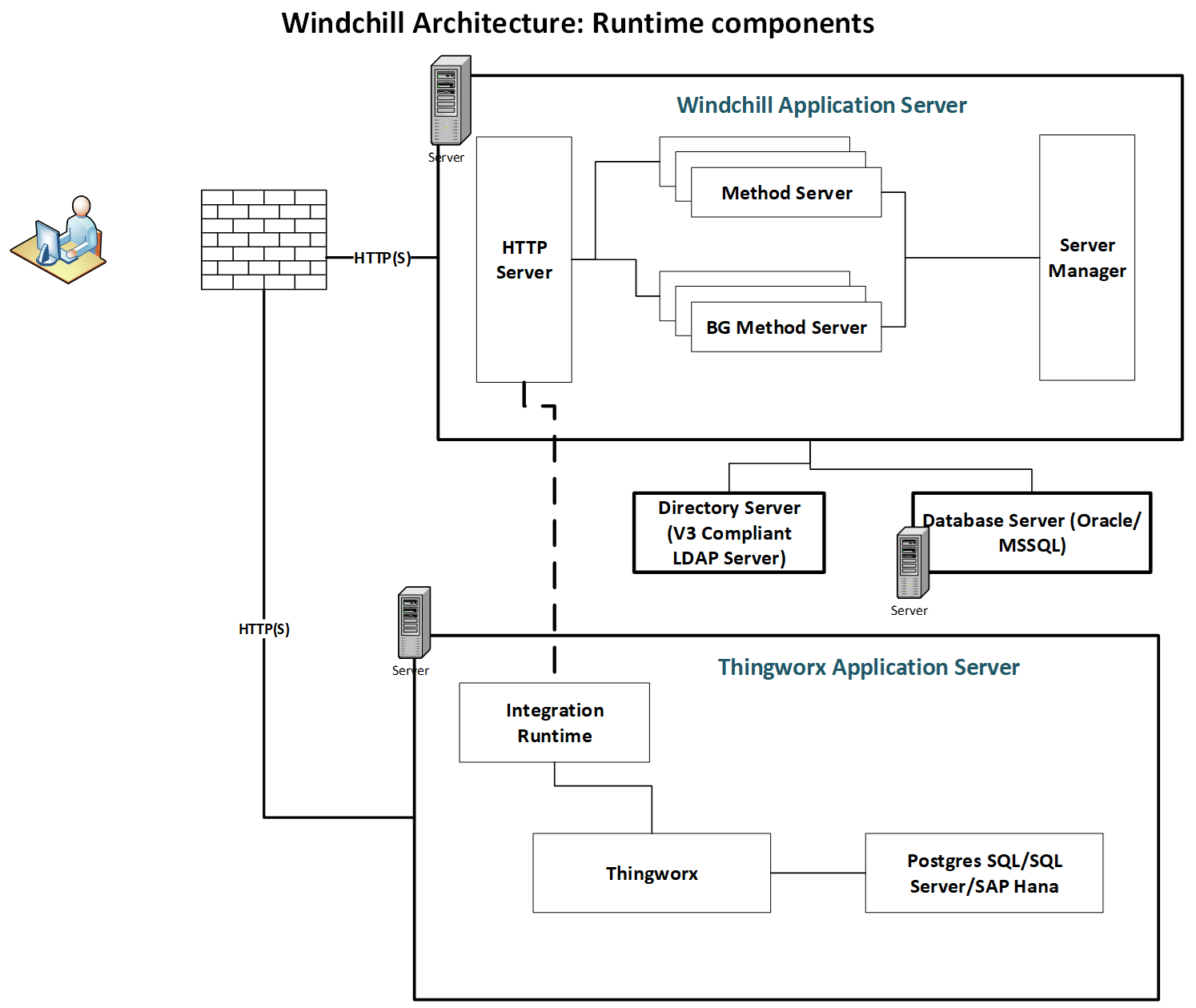
The system admin should lead this work, coordinating with the Windchill admin as needed. Include a Windchill architect if any changes are required to your Windchill instance.
During infrastructure setup, refer to the ThingWorx Architecture Guide. If you need help, contact PTC technical support.
Recommended Resources
- ThingWorx Architecture Guide Help Center
- ThingWorx Sizing Guide eSupport
- Release Advisor eSupport
Install and Configure Windchill Navigate
Follow the instructions below to download, install, and configure the software. Work with the PTC Cloud team if your Windchill Navigate instance will be deployed by PTC SaaS.
Before you begin, complete these steps:
01. Prepare for installation
Windchill Navigate has prerequisites for installation that the system admin, Windchill admin, and IT team should review carefully. They will need to coordinate work, including installing and setting up hardware, security, and databases.
Work with the PTC Cloud team if your Windchill Navigate will be deployed on a PTC SaaS.
We recommend the Help Center guides: Get Ready to Install Windchill Navigate, specifically the prerequisites page, and ThingWorx Foundation 9.0 Installer. These guides contain prerequisites regarding licensing, hardware sizing, security, software compatibility, and known issues. Understanding the prerequisites will save time and prevent errors.
If utilizing single sign-on (SSO), ensure the following items are prepared:
- A pre-production development environment for each software involved
- The software versions for Windchill, ThingWorx, and Windchill Navigate
- The operating system of the server ThingWorx will run on
- The URLs to log in to your Windchill and ThingWorx instances (including port number)
- Windchill and ThingWorx Fully Qualified Domain Names (FQDN)
SSO can be set up during installation or at a later time.
Recommended Resources
- PTC Single Sign-on Architecture and Configuration Overview Guide eSupport
- ThingWorx Foundation 9.0 Installer Help Center
- Release Advisor eSupport PTC login required
- Single Sign-on Overview Help Center
02. Install and configure ThingWorx Foundation
To install ThingWorx Foundation, first download the software. Ensuring all prerequisites are met, use the installer to finish installing and configuring. Instructions are available in the article ThingWorx Foundation 9.0 Installer.
If manually installing the software instead of using the installer, you will not be able to install Windchill Navigate using its installer. You will have to install Windchill Navigate manually. This is due to differing folder structures.
For help, open a case with PTC Technical Support (requires login).
Recommended Resources
- ThingWorx Foundation 9.0 Installer Help Center
- PTC Software Download: ThingWorx Foundation eSupport PTC login required
03. Install and configure Windchill Navigate
ThingWorx Foundation must be installed before installing Windchill Navigate. To install Windchill Navigate, first download the software, then use the installer to finish installing and configuring. Instructions are available in the article Download Windchill Navigate. Your system admin and Windchill admin should work together. Update your documentation as you go.
If you experience any errors during installation, do not continue to configuration. Resolve any errors with the help of PTC Support and reinstall Windchill Navigate.
For help, open a case with PTC Technical Support (requires login).
Recommended Resources
04. Configure licensing
After installation, configure licensing for the software using the license retrieval tool. If needed, you can retrieve the license from PTC License Management (requires login). Note when your license expires to prevent future issues.
If you do not have a full license, you can install a temporary license with a small number of seats to complete the configuration.
For help, open a case with PTC Technical Support (requires login).
Recommended Resources
- ThingWorx Foundation Installer Help Center
- License Management eSupport PTC login required
Configure Authentication and User Groups
Once Windchill Navigate is installed, the authentication method can be set up, followed by user groups. Add initial users who will configure, tailor, and test the solution.
Before you begin, complete these steps:
01. Configure authentication
Once Windchill Navigate is installed, authentication can be configured. Review the plan for authentication established earlier. Follow the instructions in the article, Configure Windchill Navigate, updating documentation as you go.
For help, open a case with PTC Technical Support (requires login).
Recommended Resources
- Configure Windchill Navigate Help Center
02. Set up user groups and add initial users
Set up user groups according to the plan created earlier. For assistance in the process, see Modify ThingWorx Permissions: Users and Groups.
Once user groups are established add initial users, including:
- Developers who will configure, tailor, and/or test the solution
- Project team members and key stakeholders who will help test the solution
- Users who will participate in user acceptance testing
Windchill Navigate includes default user groups with standard user permissions. All users added to the default group called “Administrators” will have access to everything. We recommend adding any users responsible for tailoring to this group. These users will also be able to manage access for all other users.
Ensure that each user has the expected visibility and permissions and make adjustments as needed.
For help, open a case with PTC Technical Support (requires login).
Recommended Resources
- Modify ThingWorx Permissions: Administrators Help Center
- Modify ThingWorx Permissions: Users and Groups Help Center
Tailor the App
Once installed, tailoring of views can begin. Use any documentation that has been put together so far to start creating training materials for end users.
Before you begin, complete these steps:
01. Tailor Views
Tailor views for out-of-the-box (OOTB) tasks once Windchill Navigate is installed. To tailor means to configure or modify views in the solution so the right users see the right data. Anyone with administrator permissions can tailor views, most likely the system admin, Windchill admin, and developers. Instructions on how to tailor views are available in the article, Tailor Windchill Navigate Tasks.
Refer to your technical design document and documented user groups to determine what to tailor. Tailor the views needed to properly test the solution. For example, if using the “View Design Files” task, select which formats and design relationships users should see.
Since there are more tailoring options available than you may need to modify, focus on the needs outlined in your use case. Update documentation as you go, including any changes to user groups.
If tailoring OOTB apps does not offer enough customization to satisfy your use case, consider developing a custom app instead. PTC does not recommend customizing OOTB apps if it requires development.
Recommended Resources
- Tailor Windchill Navigate Tasks Help Center
02. Create materials for end user training
Create training materials for end users as you tailor or build the solution. Compile documentation to help. The person or group planning organizational change management should lead this.
Refer to your organizational change management plan to determine what you need to create and for whom.
Materials for end user training should address:
- How to access and use the app
- How to get support
- How to report bugs and suggest enhancements
- Where to access documentation
- How their job or role may be affected
Anticipate potential changes to the app as testing occurs. Make updates to training materials continuously to ensure they are complete at the time of release.
Validate Connections
Connect data from Windchill Navigate to Windchill or a third-party system. Once connected, test that data appears and behaves as expected.
Before you begin, complete these steps:
01. Validate Connections
After connecting Windchill Navigate to appropriate data, test the connections in your development environment.
Ensure:
- Data appears in the expected format and structure
- Data flows as expected among systems
- The expected amount of data flows through
- Windchill Navigate respects the access controls defined in the source system
- The speed is acceptable (the system does not time out before data transfer completes)
- Users can access Windchill Navigate (the URL works)
Troubleshoot any connection issues before executing the test plan. For help, open a case with PTC Technical Support (requires login).
Recommended Resources
Test and Validate the Solution
Promote the solution to a testing environment and follow your test plan. Validate that the solution works as expected and that users can access the appropriate data. Share the test results with the project team.
Before you begin, complete these steps:
01. Test and validate the solution
To test the solution, deploy code from the development environment to a test or QA environment.
Test every component according to the plan made earlier, including tests for Windchill. Consider security at every stage and update any tailoring configurations on the technical design document.
The project manager and sponsor should review the goals and metrics to determine if the expected outcome will be achieved. If not, consider why and troubleshoot any issues. Share test results with the project team and determine next steps.
02. Verify user permissions
To test user permissions, administrators should create test user accounts and assign them to each user group. Use a QA environment that closely resembles production.
Verify that the test user accounts:
- Log in as expected
- Access the correct tasks
- View the correct data
- Have the ability to perform the appropriate actions in the solution
Make changes to the visibility and permissions of user groups as needed and update documentation. User group changes may be made in Windchill Navigate and/or Windchill.
Prepare to Go Live
Finalize the documentation, training plans, and communications and add users to user groups.
Before you begin, complete these steps:
01. Finalize documentation
Review the documentation plan created as part of organizational change management. Gather the final documentation and make these materials available.
Identify and communicate responsibilities for keeping documentation up to date. If updates to the solution occur, be sure to update related documentation so the organization can continue to successfully support and use the solution.
02. Follow communication plan
Communicate with all audiences around the time of go-live, following the communication plan created earlier to craft messaging as well as choose the channels that best fit each audience.
Communications to end users are particularly important. Make sure users know:
- How the application will affect their job or role
- What training will be provided
- How to get help from the support team
- Where to access documentation
- When the solution will go live
- If any system outages will occur
A few weeks after go-live, follow up with end users and managers to get feedback.
03. Train end users
Deliver training before the solution goes live. Follow your training plan.
Set up training, including any live sessions as well as communications about self-directed learning, documentation, and other resources.
04. Add end users
If you have not done so already, assign each user to the appropriate user group by following the plan you created.
The administrator is responsible for maintaining user groups and adding users appropriately.
Recommended Resources
- Automatically Map Users to Groups with SSO eSupport PTC login required
- Modify ThingWorx Permissions: Users and Groups Help Center
- User Groups in ThingWorx Help Center
- Organizations in ThingWorx
- Creating an Organization and Assigning Users or Groups
05. Train additional admins and support groups
Prepare and train the people who will provide technical support to end users once the solution is live. Ensure they know what the solution is supposed to do and how to troubleshoot issues such as data connections and user access.
Determine who within support groups will be required outside of regular business hours for go-live and support immediately following. This may include Windchill support as well as general IT support and administrators within Windchill Navigate. If testing was thorough prior to go-live, emergencies are less likely.
06. Backup systems
Backup systems involved in case of issues. This includes Windchill Navigate, Windchill, databases, or any other system involved in deployment.
Go Live
When prepared to go live, promote Windchill Navigate to your production environment. Share progress with stakeholders and update documentation. Once the solution is live, notify users and inform them how to access.
Before you begin, complete these steps:
01. Promote Solution to Production
When ready to go live, the IT team will promote the solution to production. If using PTC SaaS, work with the PTC Cloud team.
During this process, we recommend the following:
- Communicate timing and progress of the launch to the project team.
- Identify the systems that will experience outages (such as Windchill) and communicate with teams who manage or own them so that they can monitor for issues.
Once the solution is live, notify the project team and stakeholders.
02. Communicate with Users
Notify all users that the solution is live and ready to use. Refer to your organizational change management plan and follow up on any remaining communication and training items.
Provide end users with the information needed for access, whether that is sharing the link or showing how to access online.
Once live, communicate with all users:
- What login credentials to use
- How to get support and/or training
- How to access documentation
- How to report issues
Provide Support
The team that implemented Windchill Navigate should troubleshoot and provide support for a few weeks after going live. Once the solution is stable, transfer responsibility to the team who will provide long-term support.
Before you begin, complete these steps:
01. Provide go-live support
Immediately after Windchill Navigate goes live, the developers and IT team who implemented it should be available to resolve technical issues. The group or person who supports Windchill or the third-party systems you have connected to should also be available. If user access and permissions changes are necessary, complete them in production as an administrator.
Inform the project manager, adoption team, and stakeholders of any major problems or configuration updates.
The developers and IT team who implemented the solution should provide go-live support for the first few weeks. Once you are confident the solution works as expected transition to long-term support. There may be ongoing bugs or minor fixes that developers can address later. Update documentation if you implement any changes.
02. Transition to long-term support
After the first few weeks of go-live support, transfer responsibility of Windchill Navigate to the group who will provide support long-term. Follow the plan for long-term support created earlier. Ownership may be transferring to an internal IT group, an external vendor, or an adoption team.
The long-term support group will manage user access and permissions (along with the admin), provide technical support, and complete fixes and upgrades. Provide all documentation and training materials so they can assume ownership. We also recommend that you schedule a knowledge transfer session between the development team and the support team.
If the long-term support group needs help with the software, visit:
If help is still needed, open a case with PTC Technical Support (requires login). End users should always contact the internal long-term support group for assistance.
Going forward, it’s important to keep your documentation up to date. Remember to update documentation anytime there’s a change, whether it is to a user group or a tailoring configuration.
Measure Business Impact
Revisit the goals and metrics you established for your Windchill Navigate project. Then, gather the data you need to measure success and consider your next steps.
Before you begin, complete these steps:
01. Review metrics and share results
Revisit the goals and metrics set at the beginning of the project to measure progress and success and revisit baseline metrics.
It is recommended to wait 30-90 days after go-live—depending on use case—to assess the first metrics for the solution. While it is likely there will be some improvements almost immediately, some metrics require several weeks of data to properly measure, especially if any workers are slow to adopt the solution.
Compare the baseline metrics to current data to determine the value of the solution so far.
Slow adoption is an indicator in itself. If people are not using the solution, consider why they may be having trouble with access. Is there a network or hardware issue? Is more training needed? Is the solution addressing the use case?
A clearer picture of value is provided if you continue to measure and report over time. Users may turn to the solution more often as they get comfortable. They may also discover new ways to use product data. Usage may fluctuate with their need for information.
02. Revisit use cases
After assessing the business value of the solution, consider how to expand the use of Windchill Navigate to bring more value to your organization.
The solution could be expanded to other groups and locations, or an out-of-the-box task can be tailored for other roles and users.
Look for other opportunities in your prioritized list of use cases. With the project sponsor and group managers, revisit the prioritized use cases and consider if they would have been ranked differently today.