Get Started with Codebeamer
Everything you need to get started with Codebeamer
Destination or Printer: select Save as PDF
More Settings: In the Options, be sure the boxes Headers and footers and Background graphics are selected.
Configuration
NOTE: All steps between Installation and Access and Validation within the Set Up phase can be done in any order based on business needs.
Configuration is where a bulk of the work will take place during the Set up phase. This includes templates, trackers, and projects within Codebeamer.
01. Templates
Templates in Codebeamer provide a way to quickly set up new projects with pre-configured trackers, workflows, and other artifacts. Choosing the correct template or templates should have been completed in the design phase of this project, and basic configuration may have already taken place. At this point in the project, the templates should be configured to fit the exact needs of the business. This can include regulatory or general requirements. If regulatory compliance is required then ensure the proper expertise is represented within the project team.
Compliance templates are certified out-of-the-box, but configuring should be done with industry experts to ensure that no vital data is compromised.
02. Trackers
Trackers are a very important part of Codebeamer, providing a structured way to manage all the different components of a complex project, with the ability to customize and connect them as needed. A simple way to think about trackers are as tables in spreadsheet, relational database, or classes in object oriented programming. They are used to organize and manage types of information including bugs, tasks or test cases.
Each tracker has its own set of fields including title, description, priority, status, and more which helps keep all the information related to a project in one place. It is also possible to create relationships between trackers. This throughline allows the business to trace connections between different parts of a project.
Do note that trackers are not limited to projects and can act as containers for almost all objects within Codebeamer, a notable exception being the wiki.
03. Projects
Codebeamer data is organized into projects. Projects are secure collaborative workplaces where users can share, discuss, contribute, coordinate and find project information. Within each project, users can be assigned roles, such as Developer, Designer, or Stakeholder. These roles determine permission levels as well as what actions they can perform.
Both projects and users can also be organized into groups. The project groups all users to filer based on projects that only apply to their work and the user groups act as server wide permissions that apply to all projects. This allows administrators to handle access rights across a large number of users more easily.
Did you find this helpful?
Installation and Access
Integration
Table of Contents
Overview: Get Started with Codebeamer
Use this guide to plan, design, set up, and deploy Codebeamer for your organization. Provided are step-by-step instructions, training, documentation, and services to assist.
There are multiple sections within this path, please click the link below that best describes your current relationship with Codebeamer.
I am considering purchasing Codebeamer
I am ready for the Implementation of Codebeamer
What is a Success Path?
A Success Path is an online guide to help you implement a specific PTC product at your organization. Each path provides step-by-step instructions from the early planning stages all the way through to deployment. Use a Success Path to help your organization get the most out of a product and achieve your business goals.
Did you find this helpful?
Get Familiar with Codebeamer
Codebeamer is PTC’s Application Lifecycle Management (ALM) solution for distributed software development. It provides a single, secure environment for managing various aspects of the development lifecycle, including project, task, requirement, test, change, configuration, build, knowledge, and document management.
Before you begin, complete this step:
01. What is ALM?
Application Lifecycle Management (ALM) is the strategic process of managing a software or product lifecycle from inception through design, development, testing, deployment, and end of life. ALM enables software engineering teams to efficiently collaborate on projects using proven Agile practices and trusted, up-to-date information. It is a foundational discipline for successful products, teams, and companies.
The key advantages of ALM include stronger governance, more efficient application development, and predictable, effective maintenance. Modern software can be very complex and through utilizing the mentioned advantages the benefits to any business can be substantial. These advantages include:
- Increased Visibility
- Enhanced Compliance
- Faster Deployment
- Higher-Quality Products
- Lower Development Costs
Recommended Resources
- The benefits of Application Lifecycle Management for complex software product development
- Understanding the Benefits of Application Lifecycle Management Tools
- Application Lifecycle Management (ALM)
02. What is Codebeamer?
Codebeamer is an ALM platform for advanced product and software development. It extends ALM with product line configuration capabilities and provides unique configurability for complex processes. It offers digital workflows for efficiency in collaborative development and regulatory compliance support and integrates with other PTC products to connect to the engineering digital thread.
Codebeamer is a complete software lifecycle management solution, which is designed to take the complex process of software development and make it as efficient and in line with business goals as possible. It achieves this by offering the following benefits:
Recommended Resources
- ALM On Demand
- Codebeamer Community PTC Communities PTC login required
- Codebeamer Help Center Help Center
- Codebeamer: Simplify Complex Product and Software Engineering at Scale
- Codebeamer Youtube Channel (Youtube.com)
- Contact PTC
- 30 Day Free Trial Sign Up
- What is Codebeamer?
Set Goals and Metrics
Noting the goals and metrics your business will need to meet is essential for success of the project. These can be industry specific or specific to your business needs.
Before you begin, complete this step:
01. Industry Challenges
Industry challenges vary from innovative competition to fast moving development cycles to complicated compliance requirements. All of these challenges can be lessened or negated with proper ALM implementation utilizing Codebeamer.
Innovation and fast cycles can both be combated with Codebeamer's unique traceability and transparency throughout the process along with the ability to simplify extremely complex development. Compliance is even easier and more concrete with the use of Codebeamer templates. Industry specific data collection and regulatory needs met OOTB with Codebeamer. Industries include: Medical Software, Automotive, Pharma, Aviation, and more.
Recommended Resources
02. General Business Goals
Goals will vary from business to business and use case to use case, but all businesses can benefit from certain value drivers. Codebeamer can help in driving your business towards these goals.
Time: Reduce time to market by improving multi-disciplinary collaboration and meeting product requirements.
Cost: Consolidate tools and unite teams on one comprehensive solution.
Quality: Improved requirements communication and validation improves product quality.
Revenue: Products that meet customer requirements are more likely to improve market share and revenue goals.
Accelerated Software Innovation: Integrations into existing toolchain.
Streamlined Regulatory Compliance: Adhere to standards and regulatory requirements.
03. Short Term Goals
Short term goals and immediate wins are important when considering new software. What benefits will a business see immediately upon implementation? How can Codebeamer affect a business in a positive way as quickly as possible? Codebeamer's immediate benefits are many, but a few of the ones that should become immediately apparent include an increase in the number of users that have access to projects and a controlled amount of visibility for those users. These two factors alone could vastly change the software development process within a business.
Another short term, immediate win is the immediate traceability of a project. Approvals and requirements are easily followed by anyone who has the appropriate permissions and access. This concept is valuable to business stakeholders as well as a project team because everyone has the ability to be involved from the very beginning, lessening the risk of changes being needed later.
04. Long Term Goals
Less measurable, but equally as important long-term goals should be considered as well as a way to measure the success of an implementation. An example of this could be a desire to have ALM and PLM data integrated or to have all projects from a previous system, or systems, (Doors, ReqIF) migrated into a new system in which several types of data from multiple sources could all be viewed at once.
Although many features of Codebeamer are immediately available, it may take some time to fully utilize them. An example of this could be document management and the built in wiki functionality. Documents in Codebeamer are stored in a shared repository, accessible to all users with permission. A full audit trail is recorded, providing complete version control. Further enhancing document collaboration, Codebeamer's Wiki functionality allows your team to create a shared and versioned knowledge base, as well as interactive dashboards with plug-ins and widgets.
Define Environment and License Requirements
Environments and licenses define how Codebeamer will receive updates and configurations as well as who will have access to the system in both preproduction and production. Both of these should be considered early and reevaluated often to ensure all needs of the business are being met in the most efficient way.
Before you begin, complete this step:
01. Cloud vs On-Premises
Codebeamer environments can be hosted either on-premises or within a PTC hosted cloud environment, known as Codebeamer+. If on-premises is chosen then the responsibility of hosting, maintenance, and updates falls completely on the customer. If Codebeamer+ is chosen then that responsibility belongs to PTC.
02. Codebeamer Environments
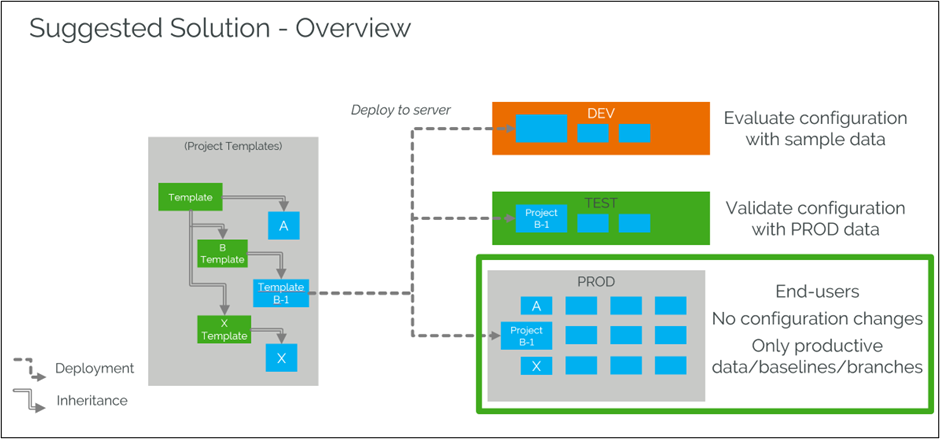
Having the appropriate software environments set up for your business is integral to the success of that software. Codebeamer is no different and all Codebeamer on-premises purchases include three environments: Production, QA, and Development. Similarly, all Codebeamer+ purchases include two environments: Production and Non-production. For Codebeamer on-premises, the production environment will be populated with the number of user licenses purchased and the Development and QA environment come with four licenses each; one concurrent and three registered. Development and QA licenses can be purchased ad-hoc if or when the need arises. For Codebeamer+, the production environment will be populated with the number of user licenses purchased and the non-production environment will come with the same number of licenses as the production, at no extra cost.
With Codebeamer on-premises installations, under premium-level licensing, there is an additional environment available called the Configuration environment, which acts as a sort of configuration template for the other three environments. It is important to decide whether this environment will be necessary for your business as it affects details surrounding how implementation will be performed. If it is decided that a configuration environment is not necessary, then configurations will have to be manually remade for each environment as needed. Please note that the configuration environment cannot easily be added at a later date.
03. Licensing
As of Codebeamer 2.0 (Husky) the FlexLM license server is available for on-premises installations, which enables the management of licenses for multiple servers. There are a total of four licenses available within Codebeamer: Codebeamer Collaboration, Codebeamer, Codebeamer Advanced, and Codebeamer Premium.
Available licenses and license combinations
- Codebeamer license
- Codebeamer Advanced license
- Codebeamer Premium license
- Codebeamer license + Codebeamer Collaboration license
- Codebeamer Advanced license + Codebeamer Collaboration license
- Codebeamer Premium license + Codebeamer Collaboration license
License features can be found in the table below.
|
License |
Features |
|
Codebeamer Collaboration |
|
|
Codebeamer |
|
|
Codebeamer Advanced |
|
| Codebeamer Premium |
|
Within the offered license packages there are also two types of licenses available: Registered (Seat) and Concurrent (Float). These types are distinguished by the way users can simultaneously access Codebeamer. A seat type is assigned to a specific user and only that user can utilize the license. A float type license acts as part of a pool of licenses and defines the maximum number of users that can log in to Codebeamer at one time. Once a user logs in, the license is taken from the pool and once a user log out with a float license, that license is then released back to the pool to be utilized by another login. For the Codebeamer+ offering, only Registered (Seat) licenses are available. For Codebeamer on-premises installations, both license types Registered (Seat) and Concurrent (Float) are available.
Recommended Resources
- Navigating Codebeamer Licenses (Spkaa.com)
System Requirements and Integration
System requirements are an important aspect of this project to know early. Read below about what Codebeamer will require from a system as well as what integrations are available.
Before you begin, complete this step:
01. General System Requirements
Understanding and ensuring that basic system requirements are met as early as possible is important to ensure there are no fundamental technical or system issues as the project progresses.
Some requirements to know up front are that Codebeamer can only be installed utilizing the 64 bit x86 architecture Windows or Linux operating system. Databases supported are Oracle and PostgreSQL. Codebeamer is a browser based experience and supports Google Chrome, Mozilla Firefox, and Microsoft Edge Chromium with Cookies and javascript enabled.
Knowing hardware requirements early can be distinctly important due to the possible need to purchase hardware. An awareness of future purchases to be made and lead times to consider can more easily ensure that projects are not delayed because of a physical item not being available.
Storage requirements will vary depending on size and number of documents, attachments and SCM (Supply Chain Management) repositories managed by Codebeamer. The general recommendation is an SSD or M2 disk with RAID with 30-50 GB storage for the database and 100-500 GB for documents, attachments and SCM (Supply Chain Management) repositories.
The final physical hardware consideration is memory. Please see the table within the Help Center for memory requirements. Note that the number of concurrent users means the number of users accessing Codebeamer simultaneously. The number of registered users could be higher.
02. Integrations
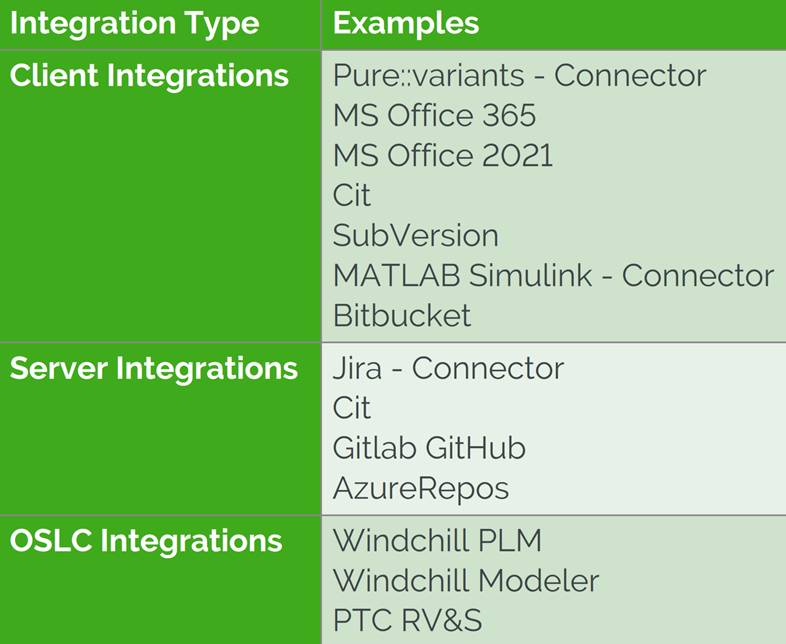
Codebeamer vast number of integrations makes it a great fit for any tool environment. Extend the platform with DevOps tools to automate and accelerate your delivery pipeline. Streamline your lifecycle with out-of-the-box native integrations, REST or Swagger API for custom integrations, or through Integration-as-a-Service providers.
The types of integrations and examples include, but are not limited to:
03. Templates
Early consideration of how data can be templated within Codebeamer is important in allowing later ease and success. Codebeamer offers a wide variety of industry specific templates. These preconfigured templates are industry specific and set up to allow your business to hit the ground running in the delivery of complex or regulated software. Start fast, accelerate your ROI, and get all your contributors up to speed in minimal time, customizing templates to suit your organization's individual need.
Templates are included with Codebeamer, but must be requested from PTC. If you need help deciding which template is right for your business please reach out directly to PTC. On top of industry specific templates, there are also SCRUM, agile, and SAFe templates available along with a generic, or default, template that can be a starting point for any business.
Templates are certified, but most customers will find that the templates are more than their business needs. It is recommended to have a industry expert partner involved when tailoring templates to ensure compliance is still maintained once the tailoring is complete. This partner may be the same as the implementation partner or it could be a third party brought in specifically to handle compliance.
Assembling a Team and Choosing an Implementation Service Provider
An internal team with the proper skillset, an Implementation Service Provider with the proper experience and the knowledge and awareness of any external needs will be foundational to Codebeamer's success.
Before you begin, complete this step:
01. Internal Core Team
Building a strong and committed internal core team is essential to the success of any large project and the implementation of Codebeamer is no different.
General Project Roles
- Project Sponsor
- Project Manager
Technical Project Roles
- IT Administrator: This role is responsible for installation, infrastructure, network security, and authentication. This individual will need the following skills:
- Familiarity with infrastructure costs and procurement
- Understanding of data architecture, including Codebeamer
- System Integration
- Understanding of security requirements, including certificates and current Codebeamer security
- SSO configuration
Other Roles to Consider
- Organizational Change Manager
- Business Process Consultant
- Subject Matter Experts
Technical Experts
- These individuals should understand ALM processes and need from a solution perspective. They could include power users on a current system or IT personnel who currently provide support to the existing solution. This group is not limited to these individuals and should include anyone within the organization it is believed will have technical knowledge that will be vital to the overall design of the solution.
Business Experts
- These individuals should have a deep understanding of the overall ALM process from a business process perspective. They should know how the business wants the flow of information to function and how ALM is used throughout the business. These experts can come from any number of backgrounds but should include at least some who have a high-level view of the process and can provide details and insight on how departments interact and how processes touch.
02. Implementation Service Provider Skills
Implementation Service Provider skills vary from a technical perspective as well as an industry perspective. Ensure the partner you engage has the proper skill set. Are you looking for a full service implementation or just consulting help? Is the partner an industry expert to assist with compliance?
These providers can be a PTC partner or PTC itself depending on the project. PTC has a partner search tool available so that customers can filter by geographical region, segment, and type. The Segment for Codebeamer will always be “ALM”. You may have an existing implementor relationship, but ensuring that they meet the segment needs as well as the type of implementer for the project your business requires is essential. If there are any questions or concerns about this process or who would be the right fit, contact PTC for help.
03. External Teams
There may be a need for extra external teams, but most customers will utilize an implementation partner to assist throughout the deployment process and for initial tech support. Along with the partner, if Codebeamer is deployed as a cloud-based solution, PTC’s cloud team will be involved for the lifetime of the solution.
Compliance needs could result in a partner with specific industry experience in compliance. The implementation partner could also have this skillset, but knowing whether an external resources would be required for compliance is important to know early. If the implementation partner performs any customization, ensure that an internal team has the proper documentation and skill set to maintenance and upkeep the code or ensure the partner and business have an ongoing relationship for support.
Create Your Project Plan and Kick Off
A comprehensive project plan is integral to the success of any project. Codebeamer is no different. Utilize this time to ensure all parties are aligned on the scope of this implementation. See what that plan should entail below.
Before you begin, complete this step:
01. Identify Project Team
There will be an initial team that decides whether to move forward with a project, but in early stages it is vital to identify all project participants. Some individuals will have already been necessary for things like environmental requirements or system integration requirements, but more participants should be involved once more technical decisions are to be made or more specific knowledge of user needs is required. The project team should also have project manager and project sponsor.
This project team should include anyone whose process will involve Codebeamer and would be considered a Subject Matter Expert for that process. Along with the process experts, consider including some power users, potential users who will be heavily using the solution once implemented to get their feedback on every day processes and how they fit into a potential Codebeamer implementation.
Having all project participants identified and communicated with early will also ensure that each party is aligned on their responsibilities and on the scope of the overall project.
02. Project Schedules and Communication
A project kick-off should be scheduled with all appropriate parties along with workshops where requirement gathering will occur. There should be two different types of workshops: a business process-focused one and a technical-focused one. Each should be scheduled, and the individuals identified as Subject Matter Experts should be informed of the schedule to ensure all appropriate parties are available to attend.
These workshops will act as a basis for solution development, and so each department and area of expertise should be represented to ensure no important details are missed during requirements gathering that could result in a delay in development, or worse, a missing functionality at go-live.
03. External Resources
An internal team will of course be needed and most likely an implementor will have been identified and ensuring both of these parties are fully communicative and fully in sync regarding what is needed is vital to success. However, for larger projects or projects with more niche requirements such as a large migration, complex integration, compliance requirements or high customization needs, external resources apart from the above mentioned groups could be necessary. Communicate with your selected implementor about all business needs as early as possible and begin to consider if there is any need for extra expertise to handle specific requirements.
04. Kickoff
Everyone on the project team should get together at the beginning of the project for a formal kickoff meeting. This can be done in person, remote or a mixture of both. Discussing the project plan and other information as one unified group will help everyone move forward fully informed and fully prepared to commence the work on the project.
Develop Workstreams
Before you begin, complete this step:
01. Defining Workstreams
Workstreams should be organized into categories based on the type of work that must be done. Examples of this include installation, configuration, or migration. Placing workstreams into these categories simplifies assigning members and tasks as the project moves forward.
Defining how the workstreams will work together before beginning is also an important exercise. Define and document the dependencies, does one workstream have to finish work before another can begin? Are there tasks and/or personnel that cross workstreams? Will the workstreams work in parallel or in series? If there is cross-workstream work to be done, how will that be handled and by whom? All of these questions answered early will ensure the project moves forward with the least amount of miscommunication or confusion regarding duties, responsibilities, and dependencies across the organization.
The final thing to consider in defining workstreams is how outcomes be provided to the overall team. Workstreams are typically managed via an agile approach and so regular updates are expected, but when an outcome, either positive or negative, is reached how will this be communicated to the wider audience?
02. Handling Workstreams
Determine how the breakdown structure will work before beginning the project fully. How will tasks be assigned and delegated? Any project management tool can be used for this, but common ones include Jira and Confluence. Consider whether implementors should have access to these tools and if so, how much access.
How will documentation be developed and disseminated? Who will perform these tasks? An example breakdown of who provides documentation would be as follows:
- Use cases/requirements- Customer Team
- OOTB features and solutions – PTC
- Configuration and customization – implementor
Along with documentation, some sort of training should also be provided that is associated with each workstream. Should the same team that did the work within the workstream provide the implementation or is there a resource that could assist in this? Who should be trained once the work is complete as well as when and how should the training be administered?
Discovery and Requirements Gathering
Requirement gathering from the appropriate resources is paramount to Codebeamer having a successful implementation. This includes requirements from both a technical perspective as well as a business process perspective.
Before you begin, complete this step:
01. Business Workshops
Hosting business requirement workshops early with the intent of informing is foundational to understanding all stakeholders' known timelines, expectations, and goals of the implementation.
During these workshops, a complete and agreed-upon version of the current state of the business process within the current ALM system should be created, which is vital to a successful implementation of Codebeamer. This version can be as simple or complex as is the process as long as it is accurately portrayed.
This process will ensure all business needs are met within the system at deployment instead of having to backtrack later to add or modify functionality. Document any gaps from a business perspective at this time so a resolution can be reached with minimal to no impact on the business.
Each industry's regulation requirements vary and should be noted and recorded now to ensure compliance immediately upon implementation. Codebeamer templates will be an integral part of any compliance in Codebeamer. Take the time now to make all stakeholders aware of user requirements. What do users need to ensure success and a quick-to-value experience for an ALM solution?
Recommended Resources
- Navigating Codebeamer Licenses (Spkaa.com)
02. Technical Workshops
A series of technical workshops at an early stage in the project can result in less need for changes later in the process. Identifying essential details such as security requirements, integration requirements, and architecture requirements now, in the design phase, will result in a more straightforward development and inevitably result in fewer changes as development occurs. PTC and/or the implementor will work with the customer to identify technical gaps and potential resolutions to those gaps.
Other requirements to consider include customization requirements, which can significantly impact timelines and should be done sparingly to fit specific business needs. Single sign-on (SSO) requirements and security should be considered; this discussion will go hand in hand with license requirements.
Please note, if there are any data migration requirements, they should have been identified earlier, but if they were not, please ensure the appropriate resources are available internally or from an implementor , as this can potentially be a large project. Migration can occur all at once during go live, partially at go live, or occur afterwards, and this will be a decision to be made by the business.
As part of the technical workshop, PTC or the implementor will provide the customer with an understanding of licenses. This will include how licenses work along with what features and functionality each license type grants users.
03. Document Gaps
Codebeamer has a multitude of out-of-the-box features and functionalities, as well as the ability to customize to specific needs. However, legacy ALM systems can have an almost infinite number of potential modifications that have been done. At this step, documenting any technical gaps that may result from the transition to Codebeamer is essential because it will allow time and thought to go into a potential solution. The partner or PTC will assist in this process to ensure that all functionality of Codebeamer is understood and all parties agree on what the potential gaps are.
If your ALM process is just beginning, this process could be very simple, as Codebeamer will be able to build from the foundation. However, if there are multiple tools or a long history of data in different forms or located in different places, coming together into one tool can be complicated. It is vital to understand exactly how everything currently works and should work upon implementation.
Finalize Plan and Design
Finalize your plan and design before beginning the configuring and developing of Codebeamer.
Before you begin, complete this step:
01. Finalize Plan and Design
Within the finalized plan there should be a finalized Functional Design Document or equivalent that is signed off by all pertinent parties. This should include specifications and requirements to a more specific degree than previously and should include some, if not all, technical aspects of the implementation.
Separately, there should be an agreement about an expected timeline and support process. These details may have been discussed at any point throughout the process previously, but should be finalized now before work begins in earnest. All key personnel that will be involved throughout implementation should be identified and communicated with at this point to ensure everyone is aware of expectations and timing and to maintain schedule availability.
The next step for your business in getting Codebeamer up and running is configuring and developing the solution. This is where the majority of the technical work within Codebeamer will take place. A set design, to the highest degree that is feasible, will save time, money, and confusion during the next phase.
A finalized design should include:
- Desired features and functions
- Customization requirements
- Or a decision that no customization is required
- External dependencies defined
- Integrations, including OOTB, connector and custom
- Compliance needs defined and agreed upon
Installation and Access
Codebeamer should be installed and access should be given to appropriate personnel. A plan should be made for which users will have access and what permissions will be granted once the solution is deployed.
Before you begin, complete this step:
01. Installation
Installation of on-premises Codebeamer should take approximately two hours. This time estimate assumes that administrators have appropriate access, the certificates are in order, and the database and server are set up and ready to be used.
These prerequisites can be performed immediately beforehand or earlier in the process. There are also general system requirements that such as operating system, hardware requirements, network requirements and memory requirements that should have been addressed earlier.
02. Access
Administrators will require full access and many key users and project team members may have had access to a test system. These permissions should be reviewed to ensure that they are still appropriate.
Setting up Active Directory (AD) or other access can be performed once installation is complete. Most customers do utilize AD for access to users in conjunction with any open standard authentication techniques such as OpenID Connect (Oauth2) and SAML 2.0.
Permissions for users will need to be considered for when the solution goes into production. All users should have access and the correct permissions set up before logging in for the first time. Permissions are highly customizable within Codebeamer and user groups can be utilized to create collections of users with similar permissions.
Configuration
NOTE: All steps between Installation and Access and Validation within the Set Up phase can be done in any order based on business needs.
Configuration is where a bulk of the work will take place during the Set up phase. This includes templates, trackers, and projects within Codebeamer.
Before you begin, complete this step:
01. Templates
Templates in Codebeamer provide a way to quickly set up new projects with pre-configured trackers, workflows, and other artifacts. Choosing the correct template or templates should have been completed in the design phase of this project, and basic configuration may have already taken place. At this point in the project, the templates should be configured to fit the exact needs of the business. This can include regulatory or general requirements. If regulatory compliance is required then ensure the proper expertise is represented within the project team.
Compliance templates are certified out-of-the-box, but configuring should be done with industry experts to ensure that no vital data is compromised.
Recommended Resources
02. Trackers
Trackers are a very important part of Codebeamer, providing a structured way to manage all the different components of a complex project, with the ability to customize and connect them as needed. A simple way to think about trackers are as tables in spreadsheet, relational database, or classes in object oriented programming. They are used to organize and manage types of information including bugs, tasks or test cases.
Each tracker has its own set of fields including title, description, priority, status, and more which helps keep all the information related to a project in one place. It is also possible to create relationships between trackers. This throughline allows the business to trace connections between different parts of a project.
Do note that trackers are not limited to projects and can act as containers for almost all objects within Codebeamer, a notable exception being the wiki.
03. Projects
Codebeamer data is organized into projects. Projects are secure collaborative workplaces where users can share, discuss, contribute, coordinate and find project information. Within each project, users can be assigned roles, such as Developer, Designer, or Stakeholder. These roles determine permission levels as well as what actions they can perform.
Both projects and users can also be organized into groups. The project groups all users to filer based on projects that only apply to their work and the user groups act as server wide permissions that apply to all projects. This allows administrators to handle access rights across a large number of users more easily.
Integration
NOTE: All steps between Installation and Access and Validation within the Set Up phase can be done in any order based on business needs.
One of Codebeamer’s greatest strengths is its ability to integrate with many external solutions seamlessly and easily. These integrations can be OOTB, utilize connectors or custom.
Before you begin, complete this step:
01. Out of the Box
Out-of-the-box integrations for Codebeamer are directly built into the solution and are designed to work seamlessly. The set up and utilization of these integration should take no special outside of the typical knowledge any IT administrator should have. There are three types of OOTB integrations: client, server, and Open Services for Lifecycle Collaboration (OSLC).
Client integrations include Pure::variants (with connector), Git Bitbucket and more
Server Integrations include GitLab, SubVersion, Jira (with connector), and more
OSLC integrations include PTC RV&S, PTC Modeler, and Windchill
02. Connectors
A software connector is a pre-built software package that transfers data and controls between components and interacts with external applications or data sources. Connectors are typically independent of the functionality of either of the software it is connecting to. Codebeamer offers connectors for several external software, allowing the solution to communicate and work with your businesses legacy tools or companion software.
These connectors can be provided by PTC, an implementor, or by the software itself. For examples, please see the Recommended Resources below.
Recommended Resources
- MS Azure DevOps Connector
- Pure::Variants Connector (Pure-systems.com)
03. Custom
Custom integrations are possible within Codebeamer utilizing open standards. This functionality will have to be developed by the business and so technical knowledge will be required to develop the functionality. This development can be performed internally or with an implementor , but be aware that if an implementor does the development of the custom integration, there may be the need for an ongoing maintenance relationship for upkeep or modifications when there are updates to either Codebeamer or the solution that it is connecting to.
Customization
NOTE: All steps between Installation and Access and Validation within the Set Up phase can be done in any order based on business needs.
Codebeamer comes with a host of OOTB features, integrations and capabilities. Customization is left up to the customer, and the options for customizations are wide, however it is only recommended if the OOTB features cannot meet a specific need.
Before you begin, complete this step:
01. General
Customizations within Codebeamer should be done sparingly and only when the OOTB features and functionality cannot meet an important business need. Customizations will require maintenance as updates occur or bugs arise and this can result in extra costs to your business. This means that the responsibility of maintenance falls to the business instead of to PTC. Also, consider that an implementor may be needed to facilitate the development of customizations and if that is the case, the implementor will most likely need to be involved in some kind of continuing support capacity.
There is a distinction within Codebeamer between tailoring and customizing. Customizing implies writing code to change functionality within the solution. Many aspects of Codebeamer can be easily modified by tailoring things such as trackers and templates, but these modifications would not be considered customization as they are all done within the Codebeamer interface.
02. Connectors
As mentioned on the Integrations page, custom connectors can be developed to integrate most external software that has an open standard for integrating. Configuring connectors involves setting up connection details, mapping fields between systems, and defining the data flow and integration points.
03. Specific Customizations
The Codebeamer user interface can be customized by modifying the menus.xml file, which is a Spring framework bean container configuration file. This is similar to any typical Spring and should require no extra knowledge to utilize.
Another common customization is to customize the email content generated by Codebeamer. This customization will utilize the Groovy scripting language as well as velocity templates.
Custom Workflow actions can also be set up using Java 7 or newer and several frameworks/libraries. The process on developing these workflows and the way you can utilize them can be complex and the documentation should be followed closely.
Migration
NOTE: All steps between Installation and Access and Validation within the Set Up phase can be done in any order based on business needs.
Migration into Codebeamer can be an extremely variable experience from customer to customer. The number of legacy systems as well as the amount of actual data should play a large role in how migration is handled.
Before you begin, complete this step:
01. General
Migration can be a complicated process for Codebeamer and in some cases can require a specialized implementor to implement depending on legacy systems. Deciding whether to perform the migration piecemeal or in a big bang approach is important to have done early and for it to be a firm decision. This decision will affect timelines and most importantly the go-live date.
All data migration should contain the following key activities:
- Legacy Data Inventory
- Ensure all legacy data is accounted for and provided to the party performing the actual migration
- Data Classification
- Determine which data should be migrated, archived, or deleted
- Data Optimization
- Clean and optimize the data to prepare it for migration. NOTE: This step could include automation scripts and/or manual cleanup
- Data Links
- Account for and classify data links, determining which links must be migrated with the data. NOTE: Links can be external integrations or relational databases
- Migration Text Plan Execution
- Trial Migration
- A continuous migration and testing cycle that occurs leading up to the “big bang” or the final piecemeal migration during final deployment
- Quality Check
- After migration, internal quality assurance confirms data has been appropriately transferred into Codebeamer
02. Best Practices
Preparation
- Clean up and classify data thoroughly before migration (to be migrated, archived, delete, etc)
- Define data mapping
- Determine if links between artifacts should be migrated, ensure OOTB Codebeamer can accommodate these links
- If legacy tools are too restrictive for data preparation, use MS Excel or Access to manipulate and rearrange artifacts before importing
Execution
- ReqIF is the recommended file format for initial small to medium sized migrations
- If ReqIF is not available, use Excel for plain text requirements or Word if requirements contain advanced formatting/images. Word only works properly if the requirements are separated by headings
- Set a baseline in the legacy tool before each migration
- For a new setup, do trial runs within a test environment before moving to production
- For large scale migrations (in IBM DOORS – from 200-300 modules upwards) it is typically preferable to use automation scripts or tools.
- For DOORS, the DOORS bridge feature can be used OOTB or as a starting point for automation. NOTE: This feature comes at no additional cost but must be requested with the license purchase. An additional server should be set up to run the DOORS bridge service. For more information, refer to Codebeamer DOORS Bridge
Quality Check
- A Data Migration Test Plan is recommended to ensure that testing and quality checks are executed according to plan
- Use tools like ReqIF Sources or Beyond Compare to review data quality after migration
- Compare number of items, amount of content as well as formatting, and attachments with source
03. Piecemeal Approach
The piecemeal approach to migration may be necessary if the amount of data is large enough, but it can also be preferable if there are many legacy systems or the business simply wants to configure and test as they go. Migration occurs alongside configuration, resulting in a feedback loop allowing for each configuration to act as a trial run for the data that was migrated. This allows feedback for the migration side as well as the data side to ensure configurations work as expected.
Some considerations when migrating data piecemeal are:
- Ensure interdepartmental data dependencies are considered when deciding what data should be moved when
- Different data types may exist, some requiring the DOORS bridge, some requiring ReqIF, and some requiring data manipulation in MS Excel or Access
- Connectors may be required to move data directly between legacy tools and Codebeamer
04. Big Bang Approach
The big bang approach to data migration would entail moving all data from all systems in a singular event. This approach is, of course, simpler if there is less data and fewer legacy systems. This approach may be completely unfeasible if there is enough data to be migrated, your selected implementor should be able to help with this decision.
For a big bang to be successful there should be a lot of preparation before beginning the transfer of data. The planning should start very early and involve the implementation team, project sponsors, project managers, and all parties responsible for data housed in legacy systems. Even if the data is not going to be transferred into Codebeamer, it is a good idea to inform all parties how data will be transformed.
Validation
Validation can be completed in conjunction with the rest of the set up phase, but should be a final step once all others are complete.
Before you begin, complete this step:
01. Quality Testing
UAT
The individuals that perform UAT testing should be suers that have been involved in the design and development process and should have training or experience in testing software to ensure that the results are as robust and thorough as possible.
UAT testing should be an ongoing process and the results from these tests should be implemented on an ongoing basis as well. The process for UAT should be documented and the results of the test should be stored for future reference if necessary. Any system the business and Implementation agree upon can be used for this process, including Codebeamer if desired.
End User
The individuals who perform End User testing should be users that will use Codebeamer once deployment is completed. The testers should walk through their everyday tasks and interact with the software as they would on a regular basis to ensure that the tasks they perform as part of their position are clear and perform as they expect.
Results of these tests should also be recorded, dealt with and stored for future reference.
02. Validate Data
Data validation is integral to both initial and long-term success for ALM and Codebeamer. During this validation, the quality department of the business should ensure that data was transferred over from the previous solution, if applicable. Even if no data was migrated from a legacy system, there should still be a validation that data will be stored in the proper locations and proper format.
This testing can be performed with dummy data if necessary and fully within a test system with the assumption that same parameters will be utilized in the production system. Proper data fidelity is paramount to a successful experience with ALM and Codebeamer. Without clear and useful data, anything comes out of the system cannot be fully utilized.
03. Finalize Configuration
After all testing has been completed and data has been validated, all final configurations should take place now. These steps may have been performed in an iterative cycle so multiple rounds of testing and configuration could have taken place, but there should be one final check on configurations before preparation for go-live.
Ensure all critical errors are dealt with and all data anomalies are understood and handled by the appropriate teams. Depending on how the project team was set up, final sign off may be required from various individuals when final configuration is complete. Obtain these records before continuing.
Prepare For Go-Live
Ensure the people who will use and support Codebeamer are ready for go live. Communicate any downtime to end users and distribute updated documentation as well as how to access training material and report problems.
Before you begin, complete this step:
01. Final Preparations
There is not a catch-all, complete checklist that is applicable to every situation, but there should be an internal one that has developed over the course of the project that accounts for the specificities of your business. What to check will vary but the below questions are an example of what could be asked:
- Are all templates compliant?
- Is data flowing among integrations as expected?
- Are users able to log in as intended and are permissions and accesses working as configured?
- Are all major issues discovered during testing resolved?
02. Communicate With End Users
When preparing to go live, inform all end users affected when the solution will become available along with how to find training and support.
End users should discuss workload concerns with their managers if the implementation will affect deadlines. Implementation often occurs near to or over the weekend to reduce the impact.
Ensure end users know:
- When Codebeamer will be available
- How to report problems
- How to find training, resources, and support
03. Distribute Documentation
Distribute documentation to end users and technical support. Upload the documentation to a central training resources location, if your organization has one.
This documentation is critical for supporting Codebeamer on an ongoing basis. It will allow for a centralized information center for end users and explain how any previous tailoring or customizations worked to technical support. Having a self-help portal for users will decrease the workload on support and having a well informed support team will allow for quicker and more thorough resolutions of issues.
Go-Live
When prepared to go live, work with your implementor, internal team or PTC to promote Codebeamer to the production environment. Share progress with stakeholders and update documentation. Once the solution is live, notify users and inform them how to access the solution. Along with this notification, remind users where to find resources and how to report issues.
Before you begin, complete this step:
01. Promote Solution to Production
When ready to go live, the IT team promotes the solution to production. If using PTC SaaS, work with the PTC Cloud team.
During this process, we recommend the following:
- Communicate the timing and progress of the launch to the project team.
- Identify the systems that may experience downtime and communicate with teams who manage or own them so they can monitor issues.
- If appropriate, remove accesses from legacy systems
Note that some go live processes will involve incremental go lives, meaning that features and portions of the solution may roll out at different times.
Once the solution is live, notify the project team and stakeholders. A roll-out may focus on one Business Unit or functional area first with others to come in a series of go lives. This is purely a business decision and will have been made early in the process. The main consideration for going live if this is the case is interdepartmental communication and data. Ensure that data and communication will not be interrupted.
If multiple business units are going live at the same, that can be facilitated, but does requires the necessary change management by the customer. Much like Migration, if everything is to be done in one big bang, the upfront planning and organization becomes all the more important.
02. Hypercare Support
The implementer should continue to provide hypercare support for a predetermined amount of time after go-live. This will act as a sort of control center for the launch, making support readily available for all users immediately after go-live. How this will function will vary, but users should have a simple way to contact the care team, and this should be included in the communication mentioned above.
The hypercare team should be responsible for documenting any bugs that are discovered during this time and reporting them to the development team. If there are cloud-related issues, the care team should report those to PTC via a support ticket.
Provide Support
Support for a solution is vital to success, utilize both implementor support and available resources to do so.
Before you begin, complete this step:
01. General Support
There are many general support options available from PTC eSupport tickets to a thriving community. PTC also offers a Support Knowledge Base for Codebeamer and all other PTC products. These resources are publicly available with a PTC with a free support account. Utilizing them as you proceed in your usage of Codebeamer will increase your knowledge and understanding of the product and its features, especially as additional features are added with updates.
Recommended Resources
- Codebeamer Community PTC login required
- Customer Support Guide
- eSupport Tickets PTC login required
- PTC eSupport Conversion from Intland
- Support Knowledge Base PTC login required
02. Official Support
Your implementor can provide support for a short term period after deployment or an agreement can be reached to provide perpetual support. This will be a situation specific relationship and will, most likely, vary to a agree, for each instance. Support can include just ticket support for issues or it can be used as a process of continuing improvement.
Discuss with the implementor early what kind of support your business is interested in as it may require a contract before implementation begins. Contact PTC if there are any questions or concerns about this process.
Measure Business Impact
Measure any goals and metrics defined for your business and consider what comes next for your business.
Before you begin, complete this step:
01. Impact
The implementation of comprehensive ALM with Codebeamer will impact your business in a multitude of ways and should be apparent quickly. Macro improvements will present themselves over time, such as a reduced cycle time. An increase in visibility within projects along with better communication and collaboration empowers development teams to turn chaotic processes into well-orchestrated ones. The management of these processes as a whole is what allows for quicker cycle time, less time sorting out confusion or miscommunication and more time getting the work done.
The next impact goes hand in hand with the first, but earns its own callout. That is an increase in productivity. The increase in productivity is part of the cycle time improvement, but that is not the only advantage. More can be done within each cycle when development teams can spend their time on improvements instead of wasting their time wading through communication problems or easily avoidable quality issues.
02. Value
The value of ALM and Codebeamer is simple. An increase in productivity, a decrease in cycle time results in more efficient processes meaning a lower cost of development. A lower cost of development allows any business to be more agile, more productive in churning out new products and features.
Examples of productivity impact include, but are not limited to:
- Change Impact & Root Cause Analysis
- Requirements Review
- Supplier Testing
- Changing Requirements
03. What's Next?
PTC has a wide variety of solutions that can applicable to a business that sees benefit from ALM. These solutions work together to create a cohesive ecosystem of efficiency and value for businesses.
Expansion of Codebeamer can also be a driving factor in a business’s advantage in ALM. Adding an environment to increase efficiency or adding licenses to increase traceability across the company. This can also include aspects such as increased governance or more training. Perhaps after implementation you come across a functionality that could be added to increase the effectiveness of Codebeamer and this feature requires some additional configuration or customization. Reach out to PTC or your implementor for how this can be done.