If you are jumping into PTC Mathcad Prime for the first time, congratulations! In the words of Obi-wan Kenobi, “You’ve taken your first step into a larger world.” If you haven’t, there is a free 30-day trial available to download. This article explains how beginners can get started with calculations in PTC Mathcad with zero previous experience.
The Interface
When you launch PTC Mathcad, the worksheet looks like graph paper, like engineers are used to for their calculations. On the Document tab, you can unclick Show Grid if you prefer a solid background instead. Thanks to the intuitive nature of the PTC Mathcad, you’ll be able to focus most of your attention on writing your math on the worksheet rather than focusing on the interface.
Let’s review a few tabs in the ribbon:
- Math: access operators, symbols, and units.
- Input / Output: read in data from Excel and text files as well as drive your Creo Parametric models from a worksheet.
- Functions: select from over 400 different functions in areas like statistics, differential equations, solving, read / write, finance, and more.
- Matrices / Tables: create and perform operations on vectors and matrices of numerical and alphanumerical data.
- Plots: generate 2D and 3D graphs of your data.
There are keyboard shortcuts for the various commands, which you will pick up over time.
Writing Math
You do NOT need to know any special programming language, formatting, or other magic in order to start performing engineering calculations. You simply type in math with your keyboard, using numbers and standard operators like add, subtract, multiply, and divide, with parentheses, exponents, and so on.
As a beginner, though, you must know the difference between two different types of equals signs. The evaluation operator is the same equals sign as you’re used to and returns the value of an expression, variable, function, or matrix.
The definition operator looks like a colon sign followed by equals. (The keyboard shortcut is the colon.) This is used to assign a value or expression to a variable or a function. Variables are placeholders for known and unknown values, imported tables or matrices of data, and processed values. Functions define mathematical operations to be performed on inputs.
Documentation
One of the primary benefits of PTC Mathcad is the ability to document your calculations as you go. From the Math tab you can create Text Blocks, which span across the width of the sheet, or Text Boxes that can be resized and repositioned. I highly recommend you create annotations for yourself and others as you create math to make your worksheets user friendly.
Functions
As mentioned earlier, PTC Mathcad contains over 400 built-in functions which you can type in directly or select from the Functions tab. Functions can have required and optional inputs. The Functions tab provides Tool Tips to explain the functions and their inputs and the F1 key will take you to the corresponding Help page to explain how to use the function.
In addition to the built-in functions, users can create their own user-defined functions. They have a name, input variables (or arguments) in parentheses, a definition operator, and the expression you would like to be evaluated.
You can pass values to the function and return the result or graph it. Speaking of which...
Plotting
A picture is worth ten thousand words. The best way to interpret your results and explain them to people is to show them with an image like a 2D or 3D plot.
PTC Mathcad Prime has two ways to make plots. The first way is the Plots tab’s polar, contour, XY, and 3D plots. The second way is Chart Component, which provides complete control over the formatting of your XY plots to get them to look exactly the way you want, suitable for placing in reports and articles.

Mathcad Graphing Options: XY Plots and Chart Components
Learn the difference between native XY Plots and Chart Components, and when you’d use each.
Read the Article
Checkpoint: Sample Worksheet
Here is a worksheet showing the tools we’ve discussed so far:
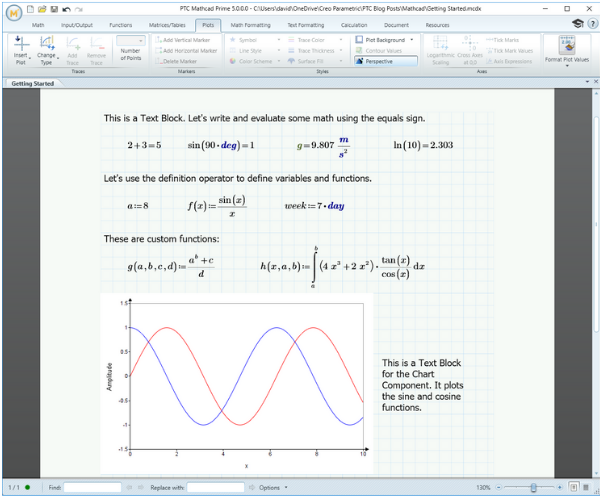
Can you try and recreate my worksheet? Let’s continue to dive deeper into the basics of Mathcad Prime.
Constants
Rather than having to define standard constants for math and physics, these are provided for you. The math constants include pi, e, and infinity (for use in limits and integrals). The physics constants include the speed of light, Planck’s constant, the atomic mass unit, Avogadro’s number, and more. Even though the acceleration due to gravity g appears as a unit, it’s also available as a constant.
Constants can be typed in directly, using a keyboard shortcut if one exists, or selected from the Constants drop-down list on the Math tab.
Units
Mathcad Prime automatically understands and reconciles units. If you’re familiar with the Mars Climate Orbiter story, you understand why that’s important. (Propulsion engineers were using United States customary units whereas everyone else was on the Metric System. The probe did not survive.)
To apply units to a value, simply multiply the value by the unit you want to use, by typing it in directly or selecting it from the Units drop-down list on the Math tab. And unlike from NASA’s incident, you can mix units from various systems, in both definition and evaluation; PTC Mathcad will figure it out. You can even create your own custom unit systems.
The units provided by PTC Mathcad include:
- Simple units for mass, length, temperature, and time.
- Derived units, like area, power, and torque.
- Complex units, like illuminance, inductance, and radiation dose.
PTC Mathcad will automatically reduce units if you want, and will inform you when you attempt to mix incompatible units, like adding angle degrees to temperature degrees.
Greek Letters
If you’re doing math, you’ve got to know Greek. PTC Mathcad makes it easy to use uppercase and lowercase Greek letters. You can either:
- Select them from the Symbols command on the Math tab; or,
- Enter the English alphabet character followed by CTRL-G. For example, p → CTRL-G will give you π, and by default Mathcad treats it like the circle constant.
Formatting Text
Documenting your engineering calculations is one of PTC Mathcad’s strengths, and often you want to “show your math” in reports. The Text Formatting tab allows you to control the font, font size, formatting, colors, bullets, numbers, and justification of your text. To save time and maintain consistency, you can define Text Styles in your worksheet.
Import and Export
If you’re doing math, at some point you’ll have data that you will need to import into PTC Mathcad. You can:
- Import a data file in text, CSV, ASCII, or binary format.
- Read in Excel files.
The imported data can be processed as vectors, matrices, and tables, using built-in functions, user-defined functions, and user-defined programs. Data can be exported as standard text, CSV, and Excel files, as well as picture and audio files.
The Input/Output tab contains wizards to help you import data, and other import and export functions are available on the Function tabs.

Integrating Excel with PTC Mathcad
How to integrate, import from, and export to Microsoft Excel with Mathcad Prime.
Use Excel with Mathcad
Vectors and Matrices
Users can create vectors and matrices of data, via inputting files, defining individual elements manually, or using functions to populate elements, including the convenient vec() function.
Once these vectors and matrices are created, PTC Mathcad provides a number of standard operators, such as dot product, transpose, and extracting rows and columns. There are more than 50 vector and matrix functions, including determinants, returning the number of rows and columns, eigenvalues and eigenvectors, maximum and minimum values, creating submatrices, and looking up values.
You can use the ORIGIN keyword to set the starting index of a vector or matrix to 1 instead of the default zero. To define or extract an element, type in the name of the vector or matrix and use the left bracket key [ to specify the index.
Final Sample Worksheet
This worksheet shows examples of many of these PTC Mathcad Prime basics:
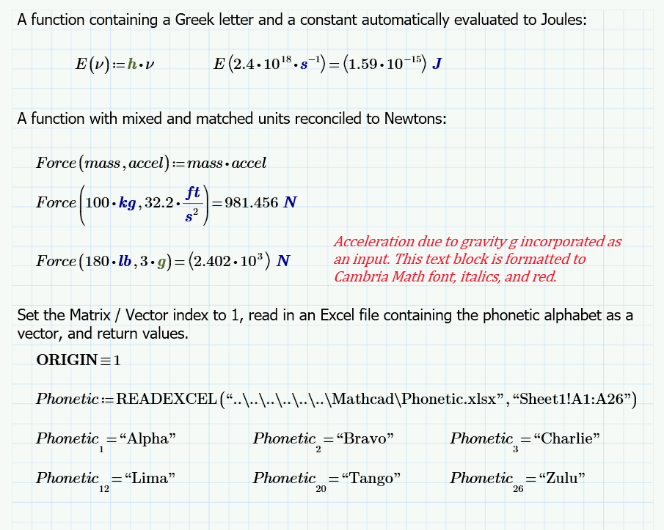
Can you duplicate this worksheet page?
Up Next
Try the 30-day Mathcad Prime free trial
There are additional, curated Mathcad resources available exclusively for trial-takers.
Download Now