Article - CS251312
Engineering connections are incorrect in CATIA 3DEXPERIENCE session after Update/Synchronize and until the CAD Document is closed and reopened from the Workspace when using the 11.0 M010 CATIA Windchill Workgroup Manager
Modified: 23-Nov-2016
Applies To
- Windchill PDMLink 11.0 M010 to M020
- Windchill ProjectLink 11.0 M010 to M020
- Windchill Workgroup Manager
- CATIA 3DEXPERIENCE
Description
- Engineering connections are incorrect in CATIA session after Update/Synchronize and until the CAD Document is closed and reopened from the Workspace
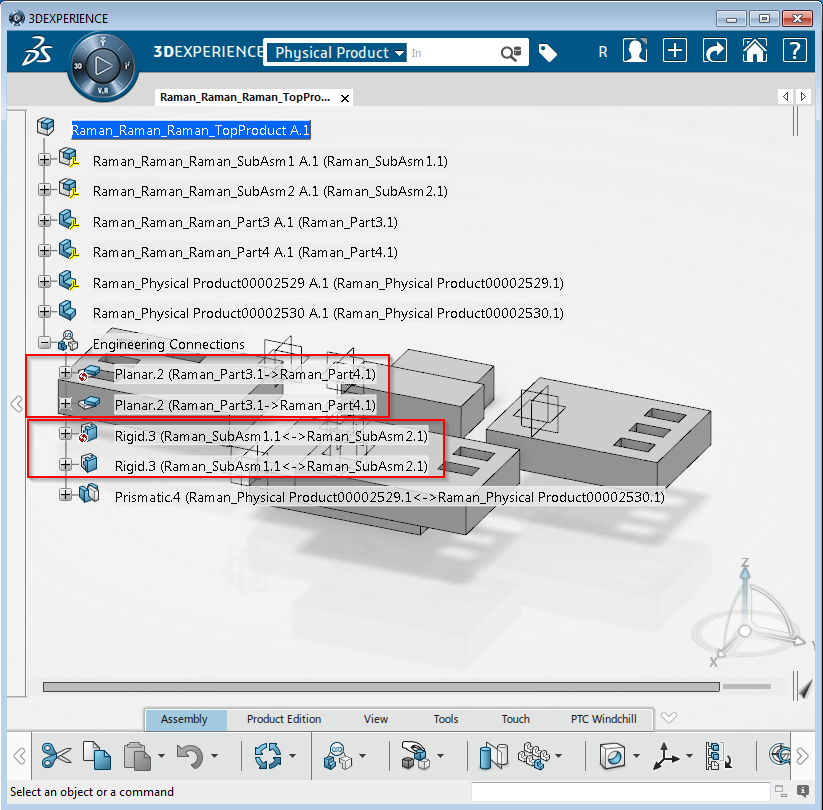
- Scenario #1: Modified engineering connections are duplicated in the CATIA tree. Global refresh does not remove them. Native CATIA Update fails due to over constrained situation.
Update Report
Network of Engineering Connections update has failed.
Check for over constrained situation.

- The following is checked into Windchill:
TopProduct
|_ SubAsm1
|_Part1
|_SubAsm2
|_Part2
|_Part3
|_ Part4
|_Engineering Connections (SubAsm1, SubAsm2)
|_Engineering Connections (Part3, Part4)
|_ SubAsm1
|_Part1
|_SubAsm2
|_Part2
|_Part3
|_ Part4
|_Engineering Connections (SubAsm1, SubAsm2)
|_Engineering Connections (Part3, Part4)
- From the Workspace, open the top level assembly, add new parts, modify Engineering Connections, add new Engineering Connections, Auto Check-in and select OK in Check Out on the Fly dialog
- Remove everything from the Workspace
- From the Commonspace, Add to Workspace A.1 version of top Product with a filter As Stored
- From the Workspace, perform open of the top product in CATIA
- From the Workspace, select the top product and perform "Re-add existing objects to update content" with download option and filter set to "Latest" (set "apply to initially selected objects" in the dialog) and select OK
- Select Retry, select OK in "Update" dialog in CATIA
- Scenario #2: Engineering connection modifications are not reverted back to the values which was saved in Windchill
- Dataset with Engineer Connections is checked into Windchill
- Open the dataset from the Workspace
- Modify Engineering connections and save changes to ENOVIA
- Double click on modified Engineering connections and check them
This is a printer-friendly version of Article 251312 and may be out of date. For the latest version click CS251312