The legacy Mathcad worksheet converter
After the end-of-sale of legacy versions of PTC Mathcad, the go-forward path for Mathcad users is PTC Mathcad Prime. Mathcad Prime does not natively open legacy Mathcad files. Use PTC’s legacy Mathcad worksheet converter to convert legacy Mathcad worksheets into Mathcad Prime worksheets.
The Mathcad Prime XMCD, MCD worksheet converter tool is included as part of your Mathcad Prime subscription, as well as the 30-day Mathcad Prime trial. Make sure the option to install the worksheet converter is checked when installing Mathcad Prime. If you did not install the converter, simply run the installer again.
Steps to convert your worksheets
Follow the steps below to convert your legacy Mathcad worksheets into Mathcad Prime worksheets.
Start the worksheet converter tool
After launching Mathcad Prime, start the worksheet converter tool. From the ribbon’s Input/Output tab, press the XMCD, MCD Converter button.
Note: If the XMCD, MCD Converter button is grayed out, the worksheet converter is not installed.
Add worksheets
In the worksheet converter tool, press the Add Worksheets button to browse for your legacy worksheets that you wish to convert into Mathcad Prime worksheets.
Worksheet converter notes
- The worksheet converter does not change, replace, or delete the legacy worksheets in any way. Legacy worksheets remain unaltered.
- The worksheet converter creates a new Mathcad Prime worksheet based on the legacy worksheet, maintaining the same base filename, but with Mathcad Prime’s .mcdx file extension.
- The worksheet converter saves the new Mathcad Prime worksheet in the same directory as the original legacy worksheet.
- The worksheet converter does not require any legacy Mathcad version to be installed on your system.
- The worksheet converter allows multiple legacy worksheets to be loaded at once. The legacy worksheets can be from the same directory or from different directories. The worksheet converter will convert them sequentially, one at a time.
The worksheet converter can convert legacy worksheets from early legacy Mathcad versions, although there may be cases where niche functionality will be flagged during conversion. See Migration Guide for additional information.
Convert button
After loading one worksheet or multiple worksheets into the worksheet converter, select the worksheets and press the Convert button. Observe the conversion status as the worksheets are processed.
Open worksheets
Open your new Mathcad Prime worksheets and edit them as needed. You can open the worksheets directly from the converter.
Best practices post-conversion
After you convert your worksheets, you should open your new Mathcad Prime files. If needed, edit the formatting of your content to your liking and keep these best practices in mind:
Save a copy using “Save As”
This will be useful for having a reference to the original converted worksheet including the annotations provided by the converter tool.
Calculate the worksheet
When first opening the worksheet in Mathcad Prime, you may see question marks where you expect to see numerical results. From the ribbon’s Calculation tab, press the Calculate Worksheet button to update all calculations and results.
Note: Running Calculate Worksheet after opening the worksheet is only needed the first time you open the worksheet after converting it.
Turn on the grid
This will show you exactly where the header and footer space is, where the margins are, and where the main body of the worksheet is. All converted worksheets use the fine grid layout in Mathcad Prime. From the ribbon’s Documents tab, you can turn on the grid before working in your new Mathcad Prime worksheet. This will make it easier to add your header/footer content, remove extra space, and shift content that may overflow into the margins or into the non-printable space (Draft View) back onto the main body (Page View) of the worksheet.
Tip: Keep the grid on while making formatting edits. It can always be turned off once you’ve completed formatting the worksheet.
Make sure all content is visible in Page View as needed
Sometimes, the worksheet converter can place content off the main page body (known as Page View) and in the margins, perhaps extending into the non-printable Draft View of the worksheet. In these cases, save time by changing page orientation, margins, and paper size before moving content.
Create your headers and footers
Headers and footers are not included in the conversion. You may see artifacts of headers and footers from the legacy worksheet in your Mathcad Prime worksheet.
Remove any artifacts in headers and footers, then spend a few minutes to create your headers and footers using the WYSIWYG, interactive header/footer method in Mathcad Prime.
Remove empty space
When the worksheet converter creates the new Mathcad Prime worksheet, you may notice blocks of extra vertical space added where such blocks of space were not in the original legacy worksheet. The quickest way to remove blocks of extra vertical space is by using the Remove Space button on the ribbon’s Documentation tab. Press Remove Space and select Empty Space to remove any empty space between your cursor and the content below. You may also open the right-click menu and select Remove Space after your cursor is positioned. All content below will be pulled up to that anchor point. This is much faster than selecting the regions and dragging them up, better than using cut/paste to move regions, and better than removing one blank line of extra space at a time.
Review annotations
Every converted worksheet will have a conversion log in the worksheet converter tool. Most messages are related to formatting and display differences and can be disregarded. Scan the conversion log for messages related to failures or concerning messages, then find those regions in the Mathcad Prime worksheet. All messages from the conversion log are visible in the Mathcad Prime worksheet (Tooltip format) when you click on a region with a red arrow.
Remove annotations
Once you’ve reviewed the annotations and have validated your Mathcad Prime worksheet, remove the annotations. From the ribbon, select Clear Annotations from the Input/Output tab.
Validate your Mathcad Prime worksheet
It is important to validate your Mathcad Prime worksheet after converting it from a legacy Mathcad version by doing your due diligence to verify that everything works as intended.
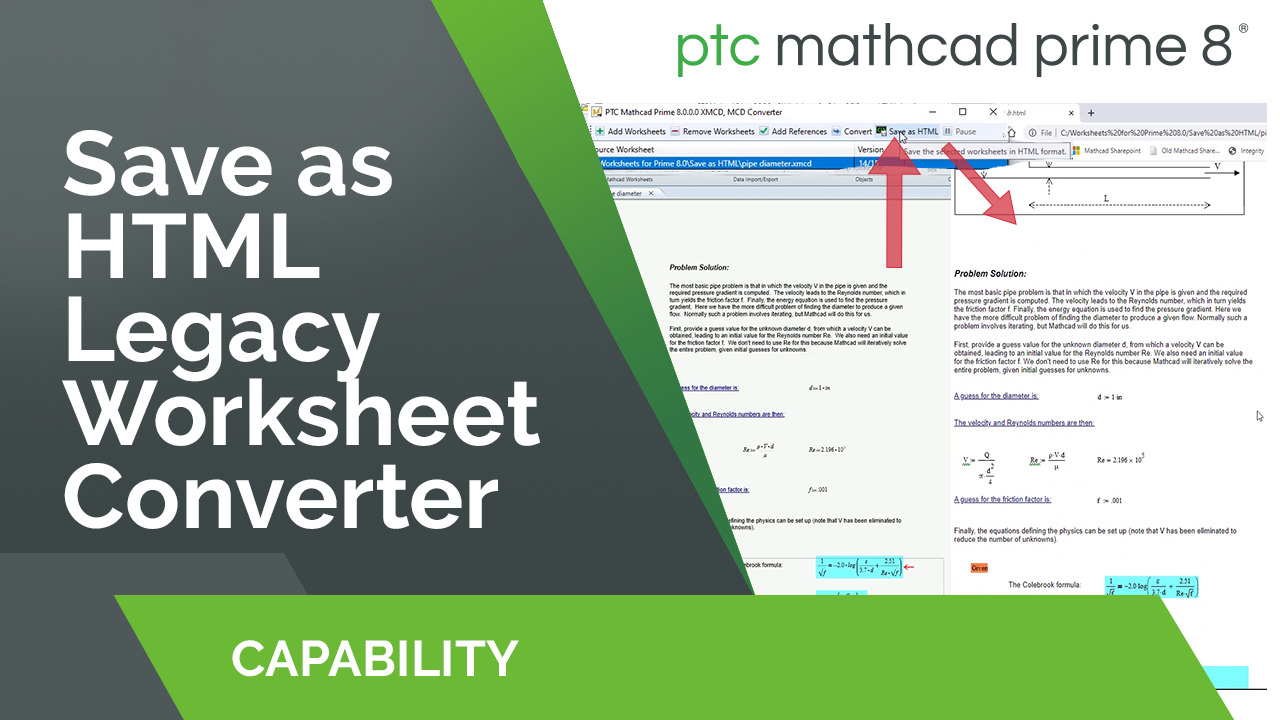
If you wish to create an HTML viewable of your legacy worksheets, select the worksheets and press Save as HTML within the worksheet converter tool interface. The worksheet converter will create an HTML version of each legacy worksheet selected. The HTML viewable will have the same base filename with the .html file extension. It will be saved to the same directory as the original legacy worksheet. Compare the HTML version of your legacy worksheet with the converted Mathcad Prime version and validate that your Mathcad Prime results are as expected.
Creating the HTML viewable is not required; it is recommended if you no longer have access to run Mathcad 15 and wish to have a readable version of your legacy Mathcad worksheet.
Resources to resolve differences between legacy & Mathcad Prime worksheets
Mathcad Prime Migration Guide
Guide updated every release with detailed instructions on converting your Mathcad 15 calculations to Mathcad Prime.
Guide updated every release with detailed instructions on converting your Mathcad 15 calculations to Mathcad Prime.
PTC Mathcad Comparison Chart: Mathcad 15 and Mathcad Prime
This chart summarizes the availability of primary capabilities and features in Mathcad 15 and Mathcad Prime.
This chart summarizes the availability of primary capabilities and features in Mathcad 15 and Mathcad Prime.
Legacy Mathcad worksheet conversion video playlist
This YouTube playlist provides tips for converting your legacy PTC Mathcad worksheets into PTC Mathcad Prime.
This YouTube playlist provides tips for converting your legacy PTC Mathcad worksheets into PTC Mathcad Prime.