Article - CS194492
Inserting a component to a SolidWorks assembly fails with error: "Failed to open file".
Modified: 03-Jan-2015
Applies To
- Windchill PDMLink 10.2 all datecodes
- Windchill Workgroup Manager 10.2 all datecodes
- SolidWorks all releases
Description
- Inserting a component to a SolidWorks assembly fails with error:
Failed to open file.
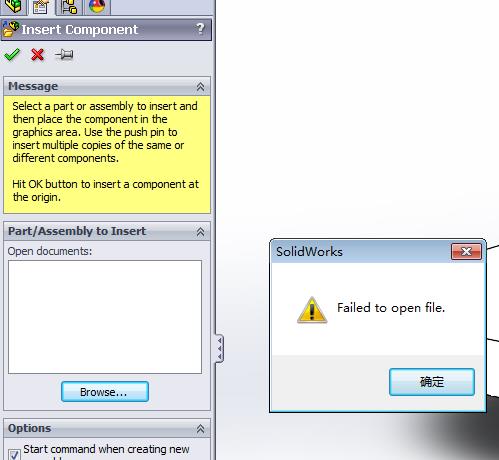
- There are 2 ways to reproduce the issue:
- Way No.1:
- Assuming there is already a SolidWorks part named A.SLDPRT in Windchill.
- Import/Save an assembly which contains a part named A.SLDPRT in local disk to an empty workspace.
- Open the assembly in SolidWorks.
- In SolidWorks, select Insert Componnets and then click Browse button.
- Select A.SLDPRT through Windchill File System Commonspace.
- Way No.2:
- Create an empty assembly in SolidWorks and insert a component by Windchill File System Commonspace. Assuming the part name is A.SLDPRT. At this time, A.SLDPRT will be added to workspace so will be available in Windchill File System Workspace.
- In SolidWorks, select Insert Componnets, click Browse button and select A.SLDPRT from Windchill File System Workspace.
This is a printer-friendly version of Article 194492 and may be out of date. For the latest version click CS194492