Project Properties — OPC DA Compliance
Project Properties — OPC DA
This server has been designed to provide the highest level of compatibility with the OPC Foundation's specifications. In testing, however, it has been found that being fully-compatible with the specification and working with all OPC client applications is a different matter. The OPC DA Compliance dialog allows users to customize operation of the server to better meet the needs of rare OPC clients. These options seldom need to be adjusted for the majority of OPC client applications.
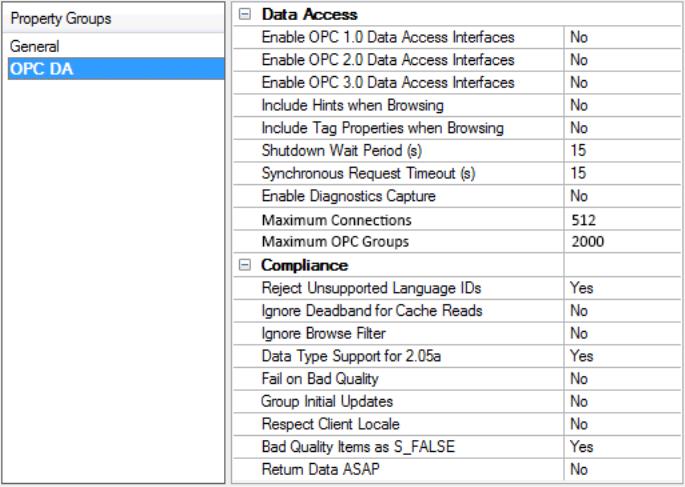
Data Access
Enable OPC 1.0 Data Access Interfaces: Select Yes to allow the server to accept OPC client connections from OPC clients that support the 1.0 specification. The default setting is enabled.
Enable OPC 2.0 Data Access Interfaces: Select Yes to allow the server to accept OPC client connections from OPC clients that support the 2.0 specification. The default setting is enabled.
Enable OPC 3.0 Data Access Interfaces: Select Yes to allow the server to accept OPC client connections from OPC clients that support the 3.0 specification. The default setting is enabled.
Include Hints When Browsing: Select Yes to allow OPC client applications to browse the address formatting Hints available for each communications driver. The Hints provide a quick reference on how a particular device's data can be addressed. This can be useful when entering dynamic tags from the OPC client. The hint items are not valid OPC tags. Some OPC client applications may try to add the Hint tags to their tag database. When this occurs, the client receives an error from the server. This is not a problem for most clients, although it can cause others to stop adding tags automatically or report errors. Prevent this by disabling Hints. The default setting is disabled (No).
Include Tag Properties When Browsing: Select Yes to allow OPC client applications to browse the tag properties available for each tag in the address space. The default setting is disabled.
Shutdown Wait Period: Specify how long the server waits for an OPC client to return from the server shutdown event. If the client application does not return within the timeout period, the server completes shutdown and exit. The valid range is 10 to 60 seconds. The default setting is 15 seconds.
Synchronous Request Timeout: Specify how long the server waits for a synchronous read operation to complete. If a synchronous operation is in progress and the timeout is exceeded, the server forces the operation to complete with a failure to the client. This prevents clients from locking up when using synchronous operations. The valid range is 5 to 60 seconds. The default setting is 15 seconds.  Note: Synchronous writes do not use this property setting; only reads / requests utilize this property.
Note: Synchronous writes do not use this property setting; only reads / requests utilize this property.Enable Diagnostics Capture: Select Yes to allow OPC diagnostics data to be logged to the Event Log service for storage (typically used for troubleshooting). The default setting is disabled (No).
Maximum Connections: Set the maximum number of simultaneous connections allowed through the interface(s) at a time. Any connection past the limit is refused and a diagnostic message is posted. The valid range is 1 to 4000 connections. The default setting is 512 connections.
Maximum OPC Groups: Set the maximum number of simultaneous OPC groups supported through the interface(s) at a time. Any client that requests a group past this limit receives an error value and both a diagnostic message and event log message are posted. The valid range is 10 to 4000 groups. The default setting is 2000 groups.
Note: This limit protects resource utilization for best performance. If you encounter this limit, consider optimizing the client configuration to reduce the number of connections and tag groups. For more information on the OPC Data Access 1.0, 2.0, and 3.0 Custom Specifications, refer to the OPC Foundation website www.opcfoundation.org.
Compliance
Reject Unsupported Language IDs: Select Yes to only allow Language IDs that are natively supported by the server. If the OPC client application attempts to add an OPC group to the server and receives a general failure, it is possible the client has given the server a Language ID that is not natively supported. If this occurs, the server rejects the group addition. To resolve this particular issue, disable the compliant feature to force the server to accept any Language ID.
Ignore Deadband for Cache Reads: Select Yes for the server to ignore the deadband setting on OPC groups added to the server. For some OPC clients, passing the correct value for deadband causes problems that may result in the OPC client (such as, having good data even though it does not appear to be updating frequently or at all). This condition is rare. As such, the selection should normally be left in its default disabled state.
Ignore Browse Filter: Select Yes for the server to return all tags to an OPC client application when a browse request is made, regardless of the access filter applied to the OPC clients tag browser.
Data Type Support for 2.05a: Select Yes for the server to adhere to the data type requirements and expected behaviors for data type coercion that were added to the 2.05a specification.
Fail on Bad Quality: Select Yes for the server to return a failure if one or more items for a synchronous device read results in a bad quality read. Compliance requires the server to return success, indicating that the server could complete the request even though the data for one or more items may include a bad and/or uncertain quality.
Group Initial Updates: Select Yes for the server to return all outstanding initial item updates in a single callback. When disabled, the server returns initial updates as they are available (which can result in multiple callbacks).
 Enabling this may result in loss of buffered data when using drivers that support data buffering (Event Playback) for unsolicited device protocols. The compliance setting should be disabled if loss of buffered data is a concern.
Respect Client Locale: Select Yes for the server to use the Locale ID of the running Windows Operating System or the Locale ID set by the OPC client when performing data type conversions. For example, a string representing a floating-point number such as 1,200 would be converted to One Thousand - Two Hundred if converted using English metrics, but would be One and Two-Tenths if converted using German metrics. If German software is running on an English OS, users need to determine how the comma is handled. This setting allows for such flexibility. By default, and due to historical implementation, the server respects the Locale ID of the operating system.
Bad Quality Item as S_FALSE: Select Yes for the server to return S_FALSE in the item error array for items without good quality. This setting defaults to Yes for existing projects that are set to full compliance and No for those that are not. When set to No, the legacy behavior of returning E_FAIL (0x80004005) occurs.
Return Data ASAP: Select Yes to enable all groups to update the client. When enabled, an active item that experiences a change in value or quality triggers a client update. The group update rate specified by the client is used to set the client requested scan rate for the items added to that group. The default setting is disabled.
The Defaults button restores the settings to the default / pre-set values.