Thread notes provide information about standard hole features in your design, including the values listed in the hole chart for that hole.
You can customize the format and information to display in your thread notes by modifying the CALLOUT_FORMAT field in the Hole Chart.
Use the following principles to customize your thread note format:
Each parameter is preceded by an ampersand (&).
A space should always follow a parameter name. Note: An on-screen space that follows a parameter value should have two spaces in the formatting.
Indicate line breaks with a slash (/).
Use control characters (for example, <CTRL+A>) to get an extended ASCII character.
If the hole is a member of a pattern, use the Pattern_No parameter in the thread note to indicate the number of pattern holes in the pattern.
Note: You can also edit thread notes after exiting the HOLE dialog box. They are the 3-D notes attached to the hole features (Tools > Environment). You can preview the thread note for a hole in the Notes slide-up panel when you are defining or redefining a standard hole.
|
UNC Note To display the following note, use the following text in the CALLOUT_FORMAT field of the hole chart: &Screw_size &Thread_Series - &Thread_Class TAP <CTRL-a>x<CTRL-b> &Thread_depth / &Number_Size DRILL (&Diameter ) <CTRL-a>x<CTRL-b> &Drill_Depth -- (&Pattern_No ) HOLE |

|
|
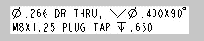
Metric Countersink Note Use the following text in the CALLOUT_FORMAT field of the hole chart: &Diameter DRILL THRU, <CTRL-a>n<CTRL-b> - &Csink_diameter x &Csink_angle <CTRL-a>w<CTRL-b> / &Metric_size x &Pitch PLUG TAP <CTRL-a>x<CTRL-b> &Thread_Depth |
|
|
Metric Counterbore Note Use the following text in the CALLOUT_FORMAT field of the hole chart: &Diameter DRILL THRU, <CTRL-a>n<CTRL-b> - &Cbore_diameter x &Cbore_depth<CTRL-a>v<CTRL-b> / &Metric_size x &Pitch PLUG TAP <CTRL-a>x<CTRL-b> &Thread_Depth |
|