

Pro/ENGINEER Wildfire Sneak Peek 1 Known Issues
I. General Feature OperationsII. Selection
III. Sketcher
IV. General Folder Navigation
V. PartsLink Integration
VI. Design Conferencing
I) General Feature Operations
- Issue: You may not be able to redefine older models in the new dashboard UI
Workaround: During your testing, work with redefine with new geometry created during a Sneak Peek session. Support will be available in Preproduction release of the software. - Issue: The first model opened during a session takes a long time to retrieve
Workaround: Only affects retrieval of the first model, after this your models should have a shorter retrieval time. This will be addressed in the Preproduction release. - Issue: Undo / Redo is not supported in all dashboard UIs.
Workaround: The user can re-select and delete references as well as options as needed within the Dashboard UI. - Issue: Modification of the section used in fill patterns will not update the section
Workaround: Redefine the pattern.Issue: Selection of URL links within 3D notes may cause instability in the software
Workaround: Avoid selection of 3D Note URL links
II) Selection
- Issue: You cannot unselect portions of a chain of edges when working with curves.
Workaround: Clear the selection buffer then reselect the references. - Issue: When curve chains are selected they may not remain highlighted.
Workaround: Use the listing of what is selected by selecting on the entry next to the Smart Filter drop down menu along the bottom of the screen. - Issue: Smart filter does not work for some references in various contexts such as sub assemblies.
Workaround: Use one of the other options available under the Smart Filter drop down menu. - Issue: Certain chain selections are not available in rounds and chamfers at this time. You will be unable to select surface chains and intent chains
Workaround: Use the other selection options to select the references needed. - Issue: Changing from one filter to another during selection will cause the items previously selected to not be listed within the dialog
Workaround: Changing the filter back to the original reference type will list the currently selected references for that filter.
III) Sketcher
- Issue: Certain operations will cause Design Conferencing to end a session prematurely.
Workaround: Avoid moving centerline or deleting all entities when working in a linked session of Pro/ENGINEER Wildfire during a Design Conference.
IV) General Folder Navigation
- Issue: When browsing a mapped drive from within the Folder Navigator, Pro/ENGINEER may exit prematurely when highlighting objects. Only occurs on mapped network drives.
Workaround: Copy data to a local drive or utilize File, Open if you would like to retrieve it directly from the mapped drive.
V) PartsLink Integration
- Issue: For a part with variable dimensions, if you try to Drag and Drop to Pro/ENGINEER without first entering a value, the Drag and Drop fails with no warning.
Workaround: Enter the dimension value before the Drag and Drop operation.
VI) Design Conferencing
- Issue: While in a Shared Session, the File, Save operation does not write the file to the Shared Space. It writes it to local disk.
Workaround: The file must be manually moved into the Space using the Browse Shared Spaces dialog or you can use Save a Copy to get the data into the Shared Space - Issue: Currently, when Observing a Shared Session, the Observer has the choice to use the existing session of Pro/ENGINEER or to spawn a new one. Please note that this will not be an option in the Production Release. A new session of Pro/ENGINEER will have to be started when Observing a Shared Session. This will enable the config.pro options to be merged correctly from the Presenter machine to the Observer machines.
Workaround: It is STRONGLY recommended that all participants in a Shared Session utilize the same config.pro file. - Issue: When performing a File, Open or a File, Save a Copy while in a Shared Session, only the currently active Shared Space should be accessible.
Workaround: Even though other Shared Spaces are available, please ensure that only the active Shared Space is accessed while in a Shared Session. - Issue: If you login with a user name that contains an '@' symbol, you are unable to initiate a Shared Session. The @ symbol is included by default when an account is created. When Run is selected, user does not become presenter.
Workaround: When creating a new user account, do not utilize the @ symbol in the name of the account. - Issue: If the Pro/ENGINEER loadpoint contains spaces (please note that the default is Program Files), then you are unable to launch Pro/ENGINEER from within the Conference Center.
Workaround: Install Pro/ENGINEER in a directory path that does not contain spaces. - Issue: If you attempt to resize the Browse Shared Spaces dialog, it will cause the PTC Conference Center to exit prematurely.
- Issue: As an Observer, if you select the Play button before objects are fully streamed over to your machine, unpredictable behavior will result. Premature exits have been observed, as well as incomplete data sets being retrieved on the Observer machine. This is only applicable in cases where the Presenter has objects already in session when the Shared Session is initiated.
Workaround: Wait a sufficient amount of time after initiating a Shared Session before having Observers select the Play button to initiate the playback of the session.Issue: There is currently no method by which to delete user accounts using the PTC Conference Center
Workaround: Remove the user accounts through the Groove Transceiver. In order to do this, Start Groove. (Note that the csd process must be killed by using Task Manager) Login as that user, and select My Account from the Go To pulldown menu. Select the Account tab at the bottom of the screen. Delete the account by selecting the Delete Account icon - Issue: The window of the Observer machines will get resized based on the Screen Area and Resolution setting on the Presenter machine.
Workaround: By setting the Screen Area and Resolution to the same settings on all machines, the Pro/ENGINEER windows will not resize during a Shared Session. - Issue: The following error may occur when attempting to launch Groove or the Conference Server:
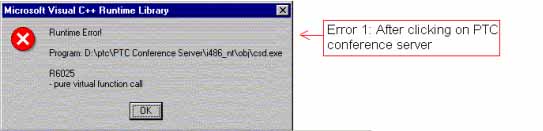
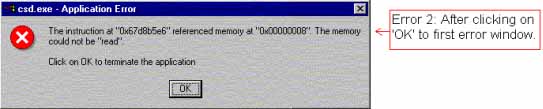
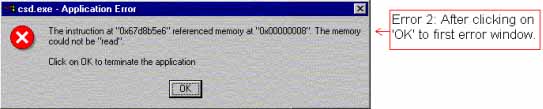
Workaround: This error has been traced to a problem with old user account information residing on the local disk. In order to correct this problem, the following directory should be deleted: 'User Profiles\username\Application Data\Groove' Also note that the Application Data directory is hidden and must be shown in order to access it. - Issue: Groove installation automatically installs an icon into Microsoft Outlook.
Workaround: To remove this, hide the icon by using functionality within Microsoft Outlook. - Issue: Large amount of information gets written into the registry during a Groove installation and the Uninstall process does not clean this information up. It must manually be deleted from the registry. To do this, select Start, Run, then type in regedit. From this point, perform an Edit, Find on 'Groove', then remove all instances that appear.
- Issue: The Groove uninstall operation does not actually remove the Groove loadpoint. The Groove loadpoint directory must be deleted manually.
- Issue: Groove will ask the user for an activation key if it is launched before launching the Conference Server and if the user attempts to create an account using the Groove interface.
Workaround: Exit Groove and ensure that you start the Conference Server first. At this point, Groove will not require an activation key. However, all new user accounts should be created using the PTC Conference Center. - Issue: After selecting the PTC Conference Server icon, no feedback is given to the user indicating that the process has successfully started.
Workaround: To ensure the process has started correctly, open up the Task Manager and make sure that one csd.exe and one nmsd.exe process is running. - Issue: In certain cases, starting PTC Conference Server for the first time after installing, an error dialog box may appear asking the user to insert a CD containing csd.exe.
Workaround: This message can be ignored and is harmless. To workaround the issue, simply close out the window. - Issue: When installing on a machine with a static IP and no domain setting, the installer is still writing
, (for example, boston.ptc.com) to proevconf.ptc. This means that the PTC Conference Center can't find the server.
Workaround: The proevconf.ptc file has to be manually modified to read machine_name only. This file is located under the <Pro/ENGINEER loadpoint>/apps/proevconf/text directory. The domain name must be removed from this file.